> ## Documentation Index
> Fetch the complete documentation index at: https://learn.art-opia.com/llms.txt
> Use this file to discover all available pages before exploring further.
# Artwork groups
> Create flexible artwork groups in Artopia, add and arrange selected works, reuse artworks across groups, and download group PDFs or CSV files.
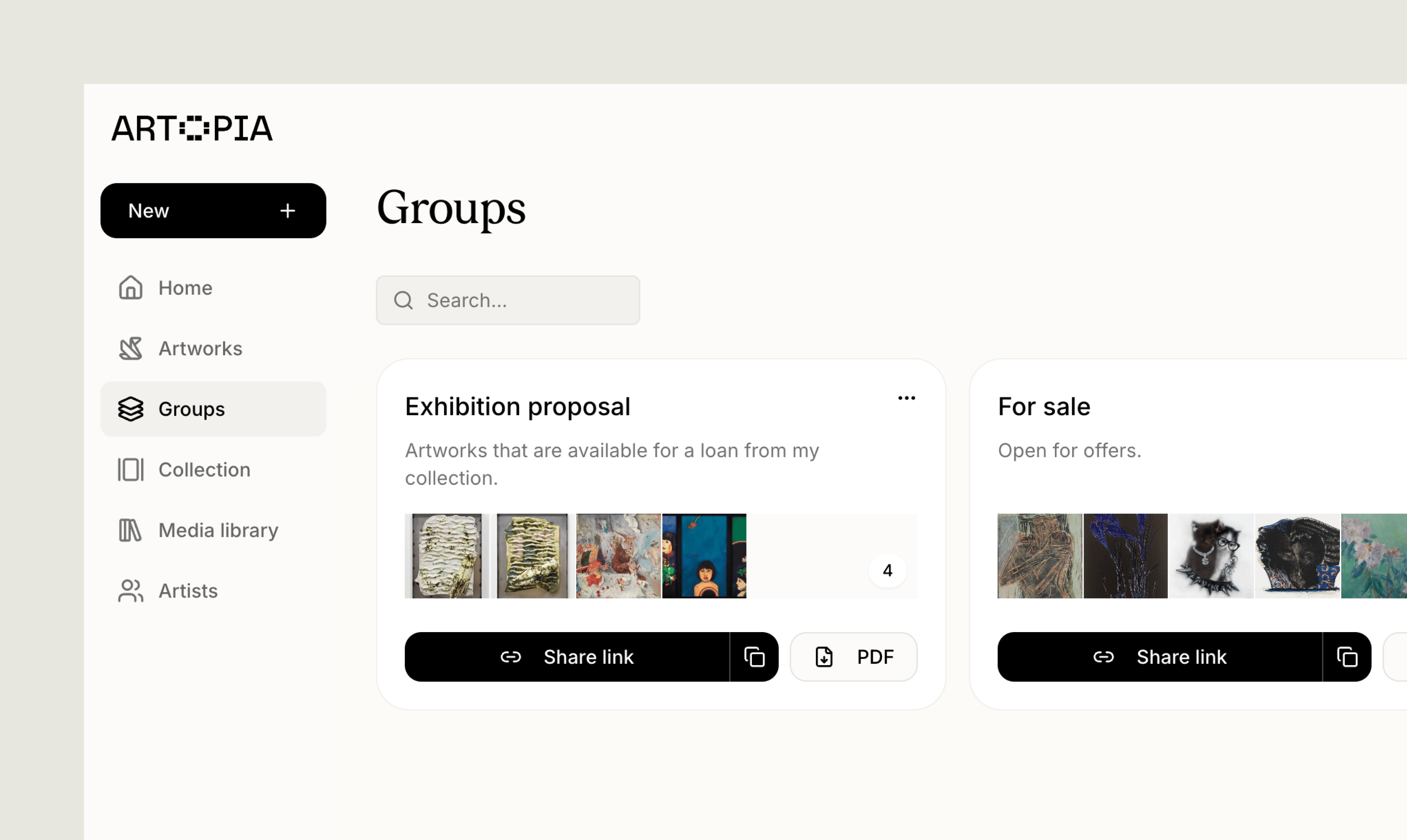 Groups are flexible, ordered selections of artworks that you can build for a particular purpose. The same artwork can appear in several groups without being copied, moved or removed from your collection.
Use a group for an exhibition shortlist, a selection for an advisor, works you are considering for sale, or any other set you want to arrange, share or export.
Groups are different from series and tags. A series gives an artwork one lasting place within a body of work, while tags help you label and filter artworks. A group is a flexible selection that you can reorder, share through a private viewing room and export.
## Creating a group
1. Open **Groups** from the sidebar.
2. Select **New group**.
3. Add a name and, if useful, a description that explains the selection.
4. Select **Create group**.
The new group opens on its own page, ready for you to add artworks. You can edit its name and description later from the group actions menu.
You can also create a group from the Artworks page:
1. Switch to list view and select one or more artworks.
2. Open **Actions** and choose **Group**.
3. Select **Create new group**.
4. Add a name and optional description, then create the group.
The artworks you selected are added immediately.
## Adding artworks
Open a group and select **Add artworks**. The artwork picker lets you:
* Choose between artworks **In collection**, **Archived** or **All artworks**
* Search your collection
* Sort by date added, acquisition date, artist, title or inventory number
* Select works individually or use **Select all**
* Add several artworks in one step
To add works from the Artworks page instead, select them, open **Actions** → **Group**, then choose **Add to existing group**.
An artwork can belong to more than one group. Adding it to a group does not change its artwork record, series, tags, status or place in any other group.
## Arranging and removing artworks
The order on the group page is the presentation order used in its private viewing room and combined PDF.
Use the left and right arrow buttons on an artwork to move it through the group. Select the remove button to take it out of the group.
Removing an artwork from a group only removes that connection. The artwork and its files remain in your collection.
## Sharing a group
Every group can be shared as a private viewing room. Visitors see only the artworks in that group, in the order you chose.
See [Private viewing rooms](/features/private-viewing-rooms) for how the viewing link works, what visitors can see and how to disable access.
## Exporting a group
Groups can also be downloaded for work outside Artopia.
### CSV
Open the group actions menu and select **Download CSV**. Choose the fields you want to include, then download one spreadsheet containing the artworks in that group.
### PDF
Select **Download PDF** to create one combined document in the group's artwork order. You can choose a preset and customise the fields before downloading.
Custom group PDFs currently support up to 40 artworks.
For more on presets, headers and included fields, see [Creating PDFs](/features/creating-pdfs).
## Ways to use groups
Bring together works from different artists, series or parts of your collection, then arrange them in the order you want to discuss or present them.
Create a focused selection for an advisor, curator, gallery, client or collaborator without opening the rest of your collection.
Keep the works you are considering in one place. Share the visual selection through a viewing room, or create a sale proposal PDF when you need to include pricing and additional details.
Group works connected to a loan, location, insurance update, cataloguing session or other project, then export the exact records you need as CSV or PDF.
Share the selected artworks in a group through a private link.
Use lasting categories and flexible labels to organise and filter your collection.
Groups are flexible, ordered selections of artworks that you can build for a particular purpose. The same artwork can appear in several groups without being copied, moved or removed from your collection.
Use a group for an exhibition shortlist, a selection for an advisor, works you are considering for sale, or any other set you want to arrange, share or export.
Groups are different from series and tags. A series gives an artwork one lasting place within a body of work, while tags help you label and filter artworks. A group is a flexible selection that you can reorder, share through a private viewing room and export.
## Creating a group
1. Open **Groups** from the sidebar.
2. Select **New group**.
3. Add a name and, if useful, a description that explains the selection.
4. Select **Create group**.
The new group opens on its own page, ready for you to add artworks. You can edit its name and description later from the group actions menu.
You can also create a group from the Artworks page:
1. Switch to list view and select one or more artworks.
2. Open **Actions** and choose **Group**.
3. Select **Create new group**.
4. Add a name and optional description, then create the group.
The artworks you selected are added immediately.
## Adding artworks
Open a group and select **Add artworks**. The artwork picker lets you:
* Choose between artworks **In collection**, **Archived** or **All artworks**
* Search your collection
* Sort by date added, acquisition date, artist, title or inventory number
* Select works individually or use **Select all**
* Add several artworks in one step
To add works from the Artworks page instead, select them, open **Actions** → **Group**, then choose **Add to existing group**.
An artwork can belong to more than one group. Adding it to a group does not change its artwork record, series, tags, status or place in any other group.
## Arranging and removing artworks
The order on the group page is the presentation order used in its private viewing room and combined PDF.
Use the left and right arrow buttons on an artwork to move it through the group. Select the remove button to take it out of the group.
Removing an artwork from a group only removes that connection. The artwork and its files remain in your collection.
## Sharing a group
Every group can be shared as a private viewing room. Visitors see only the artworks in that group, in the order you chose.
See [Private viewing rooms](/features/private-viewing-rooms) for how the viewing link works, what visitors can see and how to disable access.
## Exporting a group
Groups can also be downloaded for work outside Artopia.
### CSV
Open the group actions menu and select **Download CSV**. Choose the fields you want to include, then download one spreadsheet containing the artworks in that group.
### PDF
Select **Download PDF** to create one combined document in the group's artwork order. You can choose a preset and customise the fields before downloading.
Custom group PDFs currently support up to 40 artworks.
For more on presets, headers and included fields, see [Creating PDFs](/features/creating-pdfs).
## Ways to use groups
Bring together works from different artists, series or parts of your collection, then arrange them in the order you want to discuss or present them.
Create a focused selection for an advisor, curator, gallery, client or collaborator without opening the rest of your collection.
Keep the works you are considering in one place. Share the visual selection through a viewing room, or create a sale proposal PDF when you need to include pricing and additional details.
Group works connected to a loan, location, insurance update, cataloguing session or other project, then export the exact records you need as CSV or PDF.
Share the selected artworks in a group through a private link.
Use lasting categories and flexible labels to organise and filter your collection.