> ## Documentation Index
> Fetch the complete documentation index at: https://learn.art-opia.com/llms.txt
> Use this file to discover all available pages before exploring further.
# Artworks
> Where to find the list view, the artwork record and the new artwork form, and where actions like PDF export and transfer live.
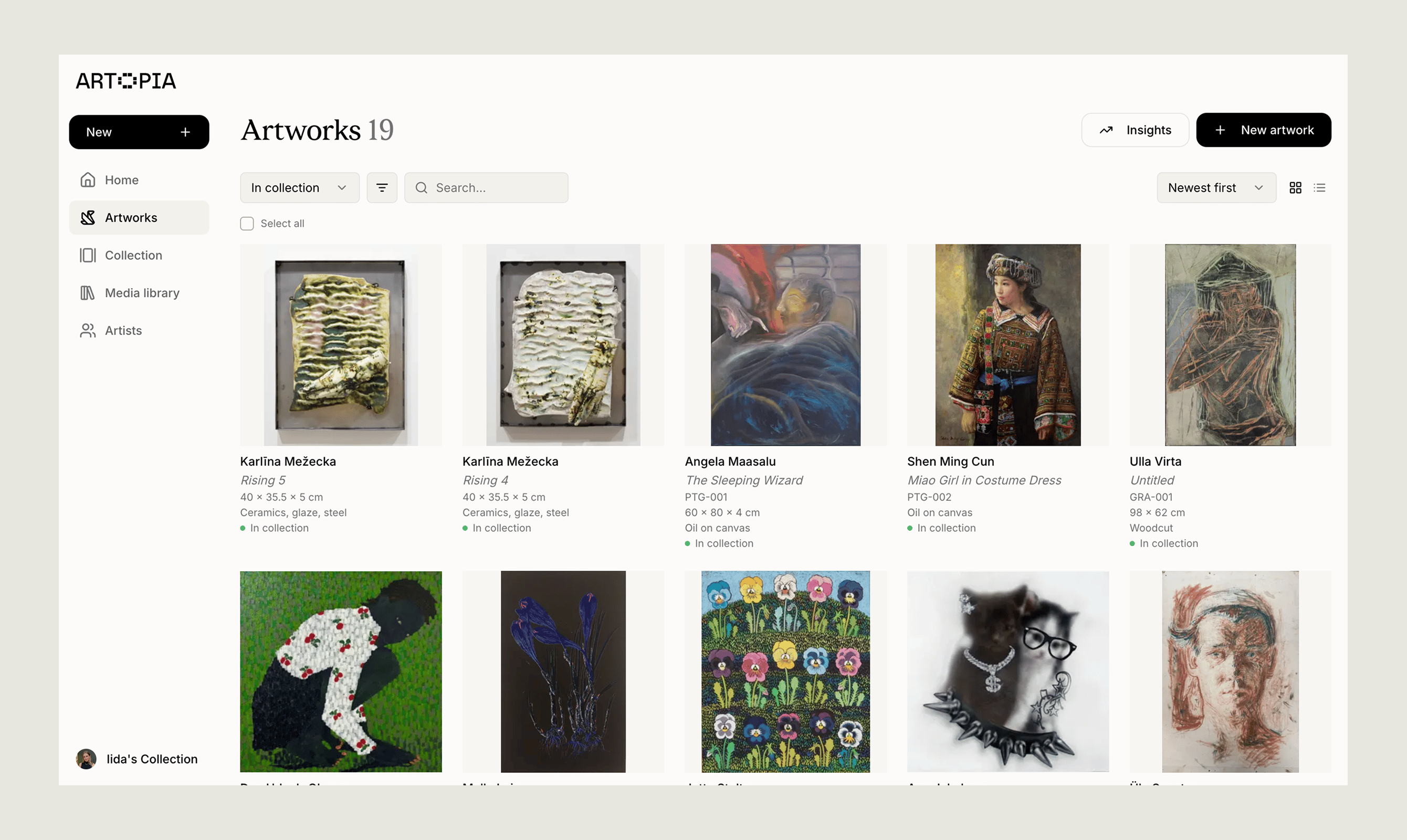 Everything in your collection lives under Artworks. From here you can browse the whole set, open a single piece to see its record, or add a new one. This page is a short tour of all three, with links to the fuller articles for each.
Artworks are **private by default**. Only you can see them until you choose to make your collection public. See [Public collection](/features/public-collection) for how sharing works.
## Browse your artworks
The Artworks page shows every piece in your active collection. At the top of the page you can switch between a visual grid and a detail-rich list. Artopia remembers your choice for next time.
From the grid or list you can:
* **Filter** by scope (all, in collection, archived), tags (including artworks with no tags), artist, status, location, series, size (S/M/L or exact dimensions), whether documents such as invoices or certificates are attached, and inventory prefix
* **Search** across title, artist, tags and series
* **Sort** by newest, oldest, artist, title, inventory number or acquisition date
* Open the **Insights** panel to see totals for whatever you have filtered to: artwork count, acquisition years, currency totals, top artists and document coverage
Your filters, sort order and view choice persist between sessions, so you can pick up where you left off. To update several artworks at once, select them from the list and use the bulk actions bar.
Learn more:
* [Search & filter](/features/filtering-artworks)
* [Bulk actions](/features/bulk-actions)
## Open an artwork record
Clicking an artwork opens its **record**, the full page that holds everything you know about that piece: images, documents, dimensions, medium, value history, provenance, condition, exhibitions and notes. The left side shows the images, title, artist and descriptive basics. The right side holds status, location, value, tags, series, exhibitions, notes and documents.
Most fields can be **edited directly on the page**, without opening a separate form. Click on status, location, value, tags, exhibitions, notes, images or documents to change them. The full edit form is only needed for the descriptive basics: artist, title, dimensions, medium and inventory number.
From the record menu you can also:
* **Create a PDF** using one of four presets. Artopia remembers the fields you last selected for each preset
* **Transfer** the artwork to another Artopia user by email
* **Delete** the artwork. This asks for confirmation and cannot be undone
Learn more:
* [Artwork records](/learn/artwork-records) — plain-language intro to what each field means
* [Creating PDFs](/features/creating-pdfs)
* [Transfers](/features/sharing)
## Add a new artwork
Add a piece from **New artwork** in the sidebar, or from the + shortcut in the header. **Artist** is the only required field, so you can save a basic record now and fill in the rest over time.
A few things that make adding artworks quicker:
* The **artist picker** includes an **Add new artist** shortcut, so you can create an artist without leaving the form
* **Inventory numbers** suggest the next free number for your chosen prefix
* **Creation date** accepts free text, so `1993`, `70s`, `Unknown`, or a range, all work
* The form **saves a draft for 7 days**, in case you close the tab before saving
Learn more:
* [Adding an artwork](/learn/add-artwork), a step-by-step walk-through
* [Inventory numbering](/features/inventory-numbering)
* [Artists](/features/artists)
## Related topics
- [Add artwork](/learn/add-artwork.md)
- [Transfer artworks](/features/sharing.md)
- [Artwork records](/learn/artwork-records.md)
Everything in your collection lives under Artworks. From here you can browse the whole set, open a single piece to see its record, or add a new one. This page is a short tour of all three, with links to the fuller articles for each.
Artworks are **private by default**. Only you can see them until you choose to make your collection public. See [Public collection](/features/public-collection) for how sharing works.
## Browse your artworks
The Artworks page shows every piece in your active collection. At the top of the page you can switch between a visual grid and a detail-rich list. Artopia remembers your choice for next time.
From the grid or list you can:
* **Filter** by scope (all, in collection, archived), tags (including artworks with no tags), artist, status, location, series, size (S/M/L or exact dimensions), whether documents such as invoices or certificates are attached, and inventory prefix
* **Search** across title, artist, tags and series
* **Sort** by newest, oldest, artist, title, inventory number or acquisition date
* Open the **Insights** panel to see totals for whatever you have filtered to: artwork count, acquisition years, currency totals, top artists and document coverage
Your filters, sort order and view choice persist between sessions, so you can pick up where you left off. To update several artworks at once, select them from the list and use the bulk actions bar.
Learn more:
* [Search & filter](/features/filtering-artworks)
* [Bulk actions](/features/bulk-actions)
## Open an artwork record
Clicking an artwork opens its **record**, the full page that holds everything you know about that piece: images, documents, dimensions, medium, value history, provenance, condition, exhibitions and notes. The left side shows the images, title, artist and descriptive basics. The right side holds status, location, value, tags, series, exhibitions, notes and documents.
Most fields can be **edited directly on the page**, without opening a separate form. Click on status, location, value, tags, exhibitions, notes, images or documents to change them. The full edit form is only needed for the descriptive basics: artist, title, dimensions, medium and inventory number.
From the record menu you can also:
* **Create a PDF** using one of four presets. Artopia remembers the fields you last selected for each preset
* **Transfer** the artwork to another Artopia user by email
* **Delete** the artwork. This asks for confirmation and cannot be undone
Learn more:
* [Artwork records](/learn/artwork-records) — plain-language intro to what each field means
* [Creating PDFs](/features/creating-pdfs)
* [Transfers](/features/sharing)
## Add a new artwork
Add a piece from **New artwork** in the sidebar, or from the + shortcut in the header. **Artist** is the only required field, so you can save a basic record now and fill in the rest over time.
A few things that make adding artworks quicker:
* The **artist picker** includes an **Add new artist** shortcut, so you can create an artist without leaving the form
* **Inventory numbers** suggest the next free number for your chosen prefix
* **Creation date** accepts free text, so `1993`, `70s`, `Unknown`, or a range, all work
* The form **saves a draft for 7 days**, in case you close the tab before saving
Learn more:
* [Adding an artwork](/learn/add-artwork), a step-by-step walk-through
* [Inventory numbering](/features/inventory-numbering)
* [Artists](/features/artists)
## Related topics
- [Add artwork](/learn/add-artwork.md)
- [Transfer artworks](/features/sharing.md)
- [Artwork records](/learn/artwork-records.md)