> ## Documentation Index
> Fetch the complete documentation index at: https://learn.art-opia.com/llms.txt
> Use this file to discover all available pages before exploring further.
# Create PDF reports
> Generate branded artwork PDFs in Artopia, including artwork sheets, insurance records, provenance reports and sale proposals. Create them one at a time, or in bulk with several artworks in the same file.
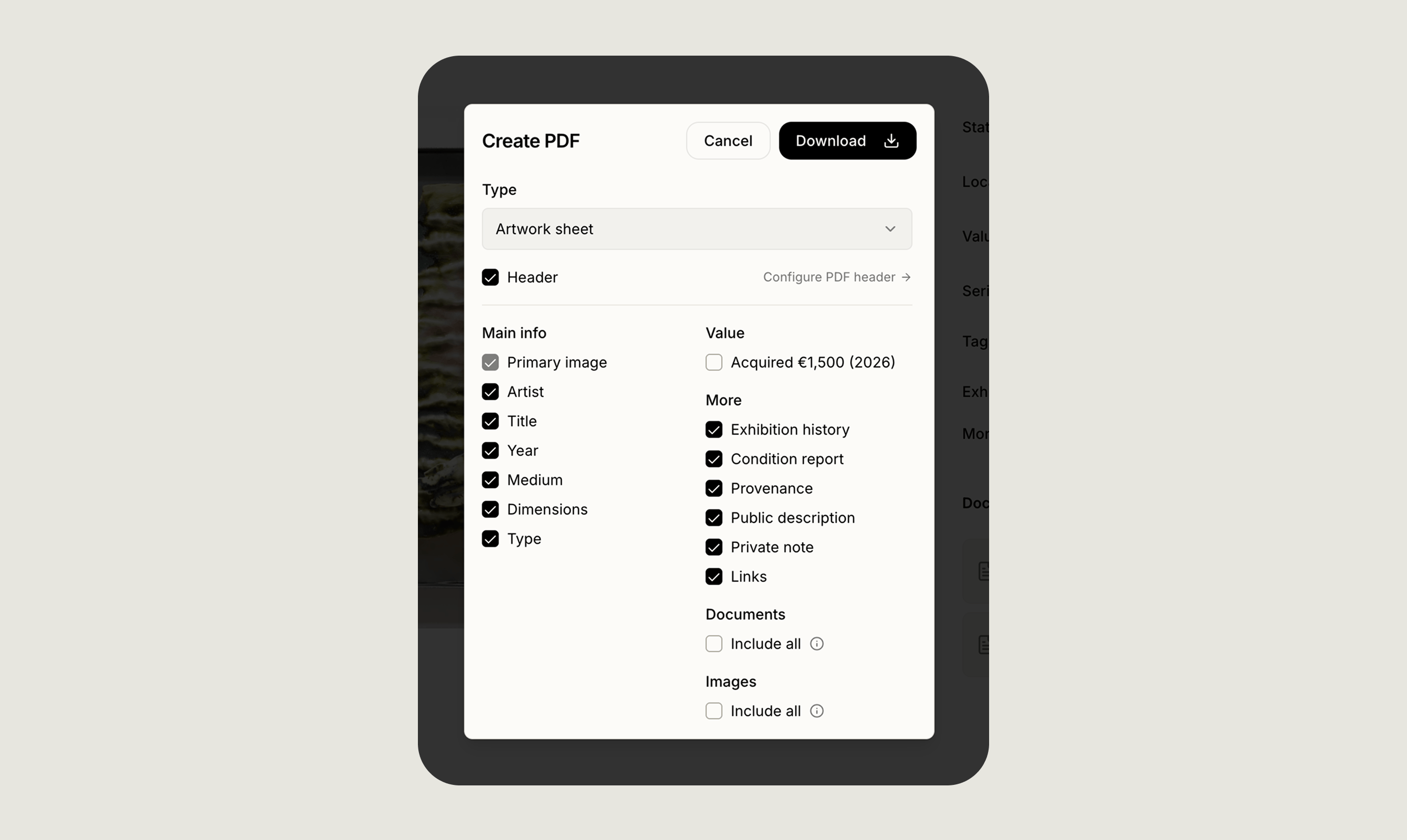 Artopia lets you create PDF reports for any artwork in your collection. Generate one for a single work from its own page, for several works from the list view, or for your whole collection from the [Export data](/features/exporting-data) page. Use them for insurance records, provenance documentation, sale proposals or clean printed references.
## PDF presets
Four presets cover the usual purposes. Each one preselects the fields it needs, and each is only a starting point, so you can add or remove fields before creating the file.
Includes artist, title, year, medium, and dimensions. A general-purpose document suitable for reference or sharing with anyone who needs a clean overview of the work.
Adds acquisition and valuation values, condition report, and provenance. Use this when providing documentation to an insurer or updating an insurance schedule.
Includes full ownership and exhibition history. Designed for due diligence situations, sales, or loan requests where a complete provenance trail is required.
A clean document for prospective buyers. Before creating, enter an asking price and select a currency, these appear on the finished document alongside the artwork details.
Each preset is a starting point. Before generating the PDF, you can add or remove individual fields to match exactly what you need.
## What you can include
When creating a PDF you can include or leave out fields from five groups:
* **Main info**, the primary image, artist, title, year, medium, dimensions and type
* **Value**, acquisition and valuation entries
* **More**, exhibition history, condition report, provenance, public description, private note and links
* **Documents**, everything attached to the artwork
* **Images**, the artwork's additional images
Additional images are grouped together on their own page, two to a row. Attached documents each get a page of their own at the end of the PDF.
Your choices are remembered for each preset, so the next time you use it the same fields are already selected.
## Creating your own header
To add a consistent header to every PDF you generate, open **Collection Settings** and fill in the **PDF export header** section. The available fields are:
* **Logo**: Appears on the left side of the header
* **Name**: Your organisation, gallery, or personal name
* **Contact email**
* **Phone number** (optional)
* **Website** (optional)
Once set, the header appears on every PDF automatically. If you leave it blank, the PDF begins straight with the artwork content.
## Creating PDFs for several artworks
To generate PDFs for more than one artwork at a time, switch to the list view and select artworks using the checkboxes. Once more than one artwork is selected, a **Create** option appears next to **Actions**. Choose your preset, then decide how you want the output:
Artopia lets you create PDF reports for any artwork in your collection. Generate one for a single work from its own page, for several works from the list view, or for your whole collection from the [Export data](/features/exporting-data) page. Use them for insurance records, provenance documentation, sale proposals or clean printed references.
## PDF presets
Four presets cover the usual purposes. Each one preselects the fields it needs, and each is only a starting point, so you can add or remove fields before creating the file.
Includes artist, title, year, medium, and dimensions. A general-purpose document suitable for reference or sharing with anyone who needs a clean overview of the work.
Adds acquisition and valuation values, condition report, and provenance. Use this when providing documentation to an insurer or updating an insurance schedule.
Includes full ownership and exhibition history. Designed for due diligence situations, sales, or loan requests where a complete provenance trail is required.
A clean document for prospective buyers. Before creating, enter an asking price and select a currency, these appear on the finished document alongside the artwork details.
Each preset is a starting point. Before generating the PDF, you can add or remove individual fields to match exactly what you need.
## What you can include
When creating a PDF you can include or leave out fields from five groups:
* **Main info**, the primary image, artist, title, year, medium, dimensions and type
* **Value**, acquisition and valuation entries
* **More**, exhibition history, condition report, provenance, public description, private note and links
* **Documents**, everything attached to the artwork
* **Images**, the artwork's additional images
Additional images are grouped together on their own page, two to a row. Attached documents each get a page of their own at the end of the PDF.
Your choices are remembered for each preset, so the next time you use it the same fields are already selected.
## Creating your own header
To add a consistent header to every PDF you generate, open **Collection Settings** and fill in the **PDF export header** section. The available fields are:
* **Logo**: Appears on the left side of the header
* **Name**: Your organisation, gallery, or personal name
* **Contact email**
* **Phone number** (optional)
* **Website** (optional)
Once set, the header appears on every PDF automatically. If you leave it blank, the PDF begins straight with the artwork content.
## Creating PDFs for several artworks
To generate PDFs for more than one artwork at a time, switch to the list view and select artworks using the checkboxes. Once more than one artwork is selected, a **Create** option appears next to **Actions**. Choose your preset, then decide how you want the output:
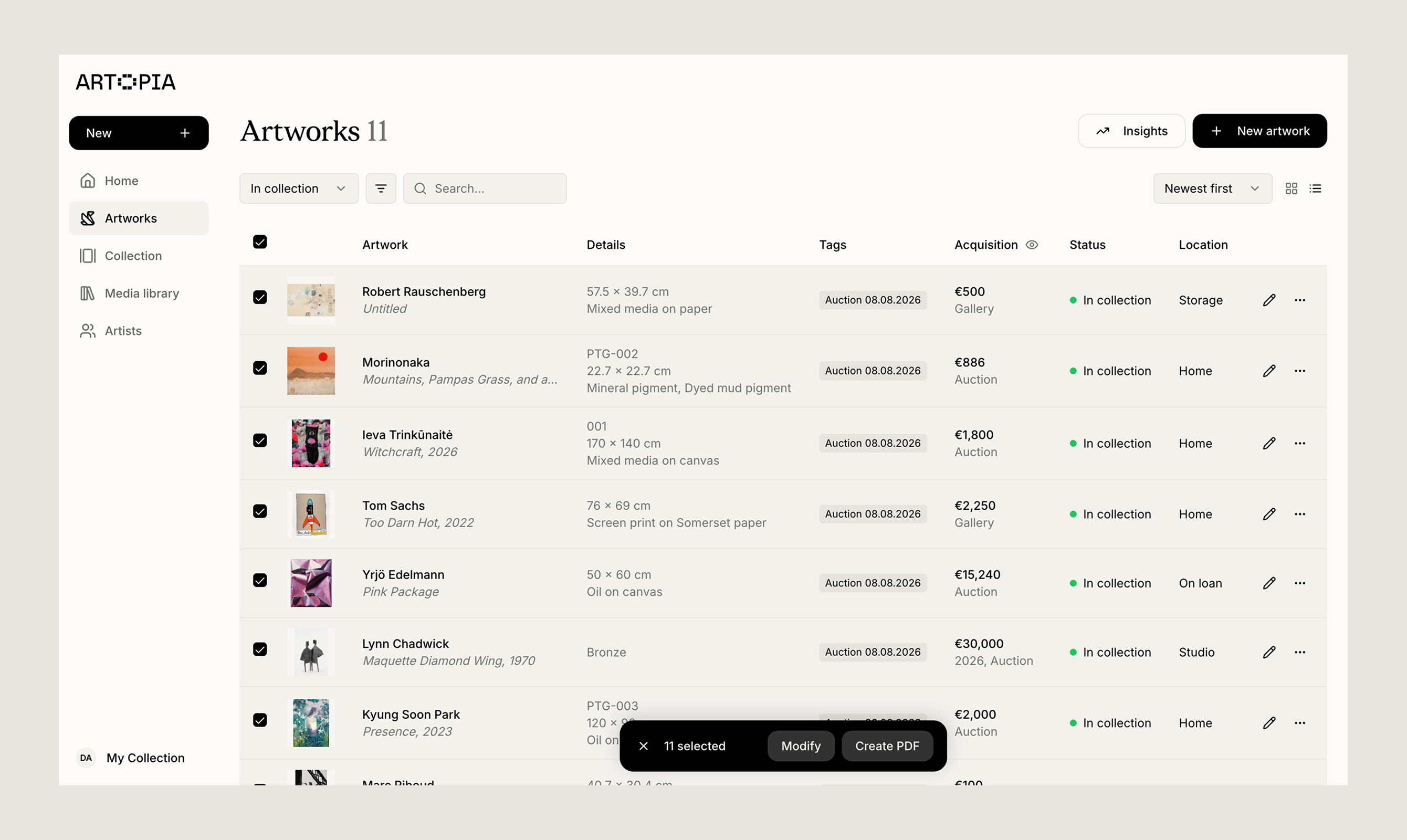 * **Separate PDFs**, one file per artwork, each named after the work
* **Combined PDF**, everything in one document, with each artwork starting on a new page
To cover your whole collection in one step, use **Create a PDF of all artworks** on the [Export data](/features/exporting-data) page.
When generating bulk PDFs, a batch of 10 artworks typically takes around 12–15 seconds to complete. Generation time increases with the number of attached images included in each PDF.
## Where your files go
PDFs are built in your browser from your own data and images, then downloaded straight to your device. Nothing is emailed, uploaded or stored anywhere else.
Because a PDF can carry private information, including values, notes, acquisition details and attached documents, it stays private unless you choose to share the file yourself.
## Related topics
- [Welcome to Artopia](/learn/welcome-to-artopia.md)
- [Provenance & Condition reports ](/features/provenance-and-condition.md)
- [May 2026](/updates/may-2026.md)
* **Separate PDFs**, one file per artwork, each named after the work
* **Combined PDF**, everything in one document, with each artwork starting on a new page
To cover your whole collection in one step, use **Create a PDF of all artworks** on the [Export data](/features/exporting-data) page.
When generating bulk PDFs, a batch of 10 artworks typically takes around 12–15 seconds to complete. Generation time increases with the number of attached images included in each PDF.
## Where your files go
PDFs are built in your browser from your own data and images, then downloaded straight to your device. Nothing is emailed, uploaded or stored anywhere else.
Because a PDF can carry private information, including values, notes, acquisition details and attached documents, it stays private unless you choose to share the file yourself.
## Related topics
- [Welcome to Artopia](/learn/welcome-to-artopia.md)
- [Provenance & Condition reports ](/features/provenance-and-condition.md)
- [May 2026](/updates/may-2026.md)