> ## Documentation Index
> Fetch the complete documentation index at: https://learn.art-opia.com/llms.txt
> Use this file to discover all available pages before exploring further.
# Media library
> Artopia's Media library stores every image and document you upload. Search, rename, download and link files to artwork records from one central location.
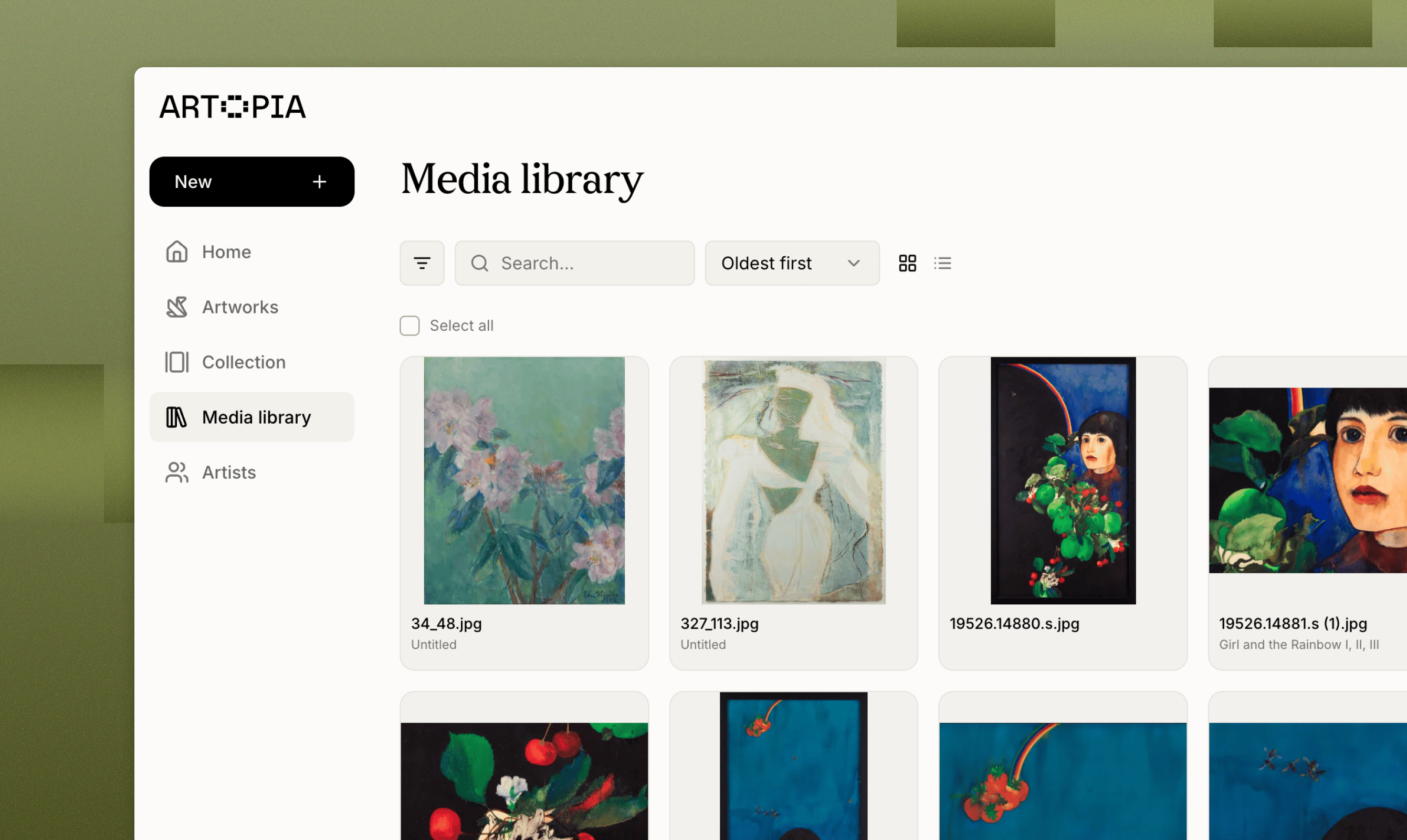 The Media library holds every image and document across your collection. Whatever you upload to Artopia, whether from an [artwork record](/features/adding-artworks) or directly here, is stored in one place.
## Browsing and searching
Use the search bar to find a file by title or filename. Click any file to open its details, which show the artwork it is linked to, its dimensions, size, file type and when it was uploaded.
The Media library holds every image and document across your collection. Whatever you upload to Artopia, whether from an [artwork record](/features/adding-artworks) or directly here, is stored in one place.
## Browsing and searching
Use the search bar to find a file by title or filename. Click any file to open its details, which show the artwork it is linked to, its dimensions, size, file type and when it was uploaded.
 ## Uploading files
You can upload [images](/learn/images) and [documents](/learn/documents) straight from the Media library, either from your device or by URL, and several at a time. Once uploaded, you can attach files to individual [artwork records](/features/adding-artworks) from the artwork's own page.
## Uploading files
You can upload [images](/learn/images) and [documents](/learn/documents) straight from the Media library, either from your device or by URL, and several at a time. Once uploaded, you can attach files to individual [artwork records](/features/adding-artworks) from the artwork's own page.
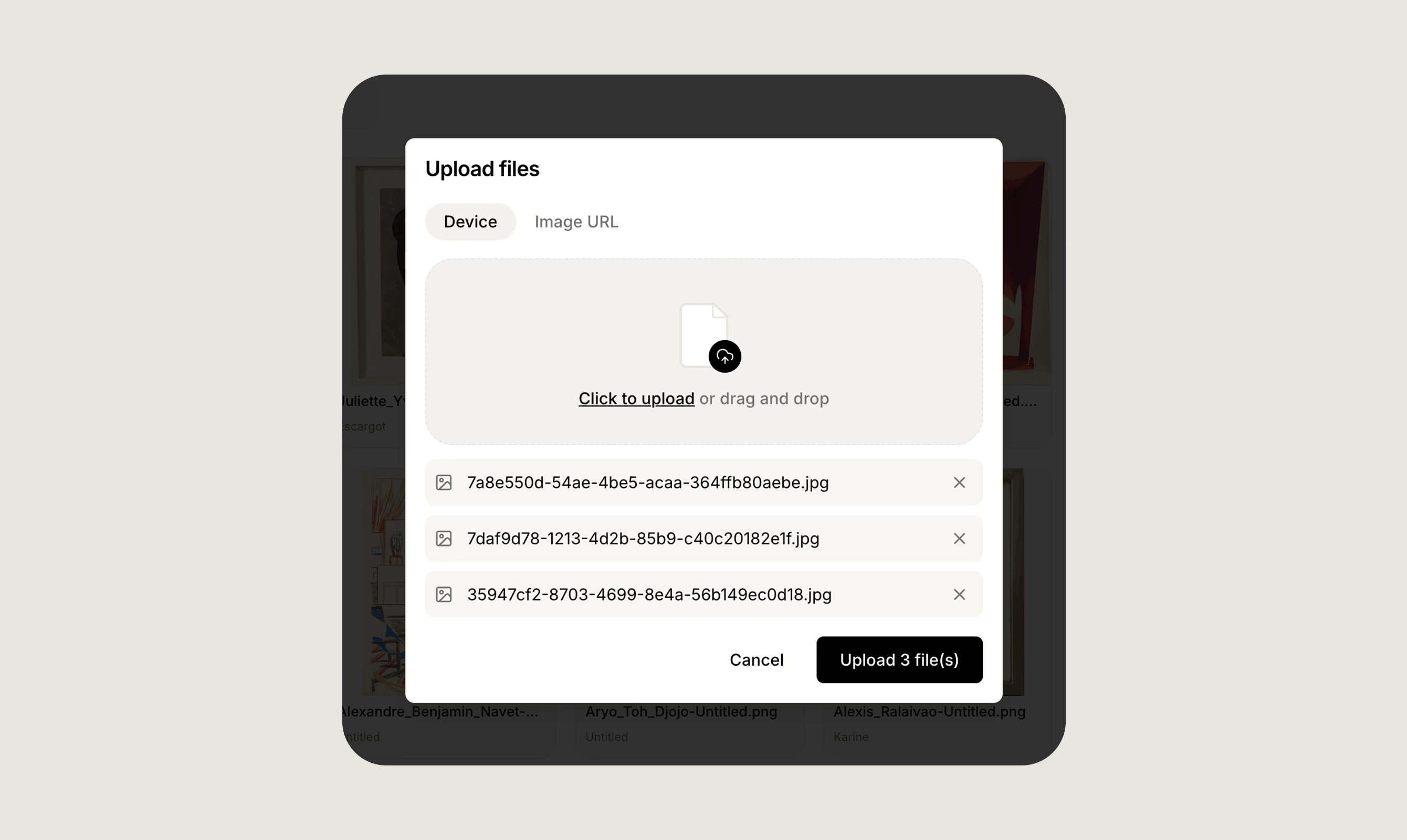 Uploading in bulk here first is quicker than adding files one at a time from each artwork.
## Renaming files
Rename any file from its details panel. Consistent, descriptive names make files easier to find as your collection grows.
## Linking to artworks
Every file shows which artwork it is currently linked to. To change what is attached to an artwork, whether adding or removing images and documents, go to the [artwork record](/features/adding-artworks) and edit it there.
## Downloading files
Any file in the Media library can be downloaded from its details panel.
## Related topics
- [Artwork documents](/learn/documents.md)
- [Artwork images](/learn/images.md)
- [March 2026](/updates/march-2026.md)
Uploading in bulk here first is quicker than adding files one at a time from each artwork.
## Renaming files
Rename any file from its details panel. Consistent, descriptive names make files easier to find as your collection grows.
## Linking to artworks
Every file shows which artwork it is currently linked to. To change what is attached to an artwork, whether adding or removing images and documents, go to the [artwork record](/features/adding-artworks) and edit it there.
## Downloading files
Any file in the Media library can be downloaded from its details panel.
## Related topics
- [Artwork documents](/learn/documents.md)
- [Artwork images](/learn/images.md)
- [March 2026](/updates/march-2026.md)