> ## Documentation Index
> Fetch the complete documentation index at: https://learn.art-opia.com/llms.txt
> Use this file to discover all available pages before exploring further.
# Provenance & Condition reports
> Keep a structured history of provenance and condition for every artwork. Add entries over time and attach supporting documents to each one.
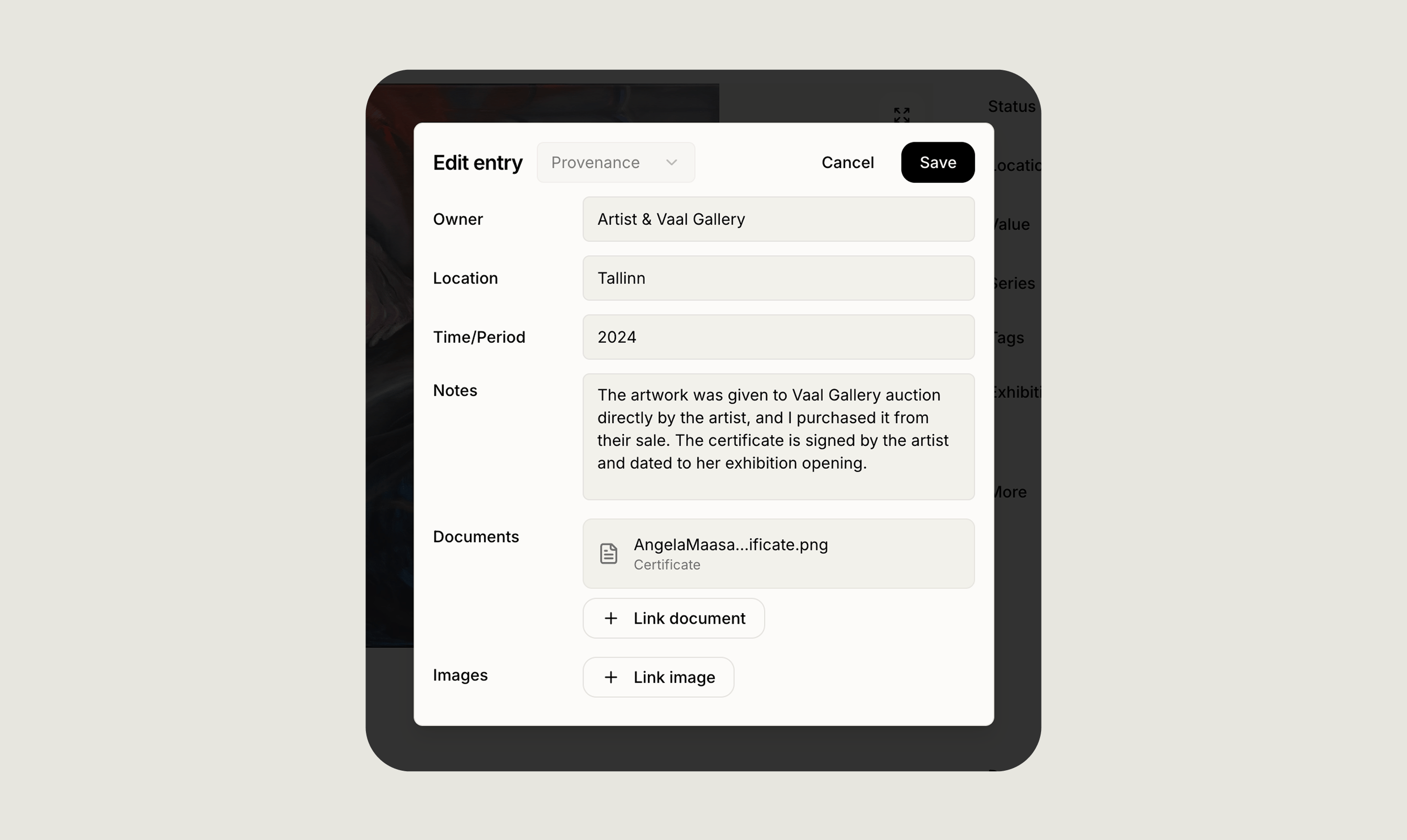 Provenance and condition report entries let you build a structured history for every artwork: who owned it and when, and how it has held up over time. Both work the same way. Rather than one free-text field filled in once, they are dated entries you add as new information comes in.
## Where to find them
Provenance has its own section on the artwork page, below Exhibitions. Click **Add entry** to create one.
Condition reports sit just underneath, in **More**, alongside Link. Click **Add** and choose Condition report.
## Provenance entries
Each provenance entry has four fields:
| Field | Purpose |
| ----------------- | ------------------------------------------------ |
| **Owner** | A person, gallery or estate. |
| **Location** | Where the work was held. |
| **Time / Period** | Written freely, so `1972 to 1985` or `ca. 1990`. |
| **Notes** | For the full context, with no length limit. |
You can add as many entries as you like, usually one per owner or period, and only one field needs to be filled in for an entry to save.
Each entry can also carry attachments: any document or image already uploaded to the artwork, such as a [certificate of authenticity](/learn/documents), a receipt, or a photograph. Attached files show as a small badge on the entry.
## Condition report entries
Condition reports have two fields:
* **Description**, a short summary, for example "Excellent, minor surface wear at lower edge"
* **Notes**, for the detailed report
As with provenance, you can add as many entries as you need, attach supporting files and save with only one field filled in. Multiple entries are useful for tracking how a work changes over time, before shipping, after a loan returns or following restoration.
## How entries appear
On the artwork page, entries are grouped under a Provenance or Condition report heading.
Provenance entries appear in the **Provenance** section, each showing owner, location and period in bold, followed by your notes. Condition reports appear under **More**, with the description in bold, followed by the notes. Every entry carries the date it was last edited, and any attachments appear as a badge that opens the file.
## Privacy
Provenance and condition entries are visible only to you. They never appear on [public collection](/features/public-collection) or public artwork pages, whatever your collection's visibility setting.
## Exports
Both are included in [PDF exports](/features/creating-pdfs). When exporting a single artwork or a batch, Provenance and Condition report are selectable fields, and there is a dedicated Provenance report preset that builds the layout around these entries and their attachments.
Both are also included in **CSV exports**, as their own columns, with all entries written out as readable text. See [Exporting data](/features/exporting-data).
## Related topics
- [Track provenance](/learn/track-provenance.md)
- [Create PDF reports](/features/creating-pdfs.md)
- [Add artwork](/learn/add-artwork.md)
Provenance and condition report entries let you build a structured history for every artwork: who owned it and when, and how it has held up over time. Both work the same way. Rather than one free-text field filled in once, they are dated entries you add as new information comes in.
## Where to find them
Provenance has its own section on the artwork page, below Exhibitions. Click **Add entry** to create one.
Condition reports sit just underneath, in **More**, alongside Link. Click **Add** and choose Condition report.
## Provenance entries
Each provenance entry has four fields:
| Field | Purpose |
| ----------------- | ------------------------------------------------ |
| **Owner** | A person, gallery or estate. |
| **Location** | Where the work was held. |
| **Time / Period** | Written freely, so `1972 to 1985` or `ca. 1990`. |
| **Notes** | For the full context, with no length limit. |
You can add as many entries as you like, usually one per owner or period, and only one field needs to be filled in for an entry to save.
Each entry can also carry attachments: any document or image already uploaded to the artwork, such as a [certificate of authenticity](/learn/documents), a receipt, or a photograph. Attached files show as a small badge on the entry.
## Condition report entries
Condition reports have two fields:
* **Description**, a short summary, for example "Excellent, minor surface wear at lower edge"
* **Notes**, for the detailed report
As with provenance, you can add as many entries as you need, attach supporting files and save with only one field filled in. Multiple entries are useful for tracking how a work changes over time, before shipping, after a loan returns or following restoration.
## How entries appear
On the artwork page, entries are grouped under a Provenance or Condition report heading.
Provenance entries appear in the **Provenance** section, each showing owner, location and period in bold, followed by your notes. Condition reports appear under **More**, with the description in bold, followed by the notes. Every entry carries the date it was last edited, and any attachments appear as a badge that opens the file.
## Privacy
Provenance and condition entries are visible only to you. They never appear on [public collection](/features/public-collection) or public artwork pages, whatever your collection's visibility setting.
## Exports
Both are included in [PDF exports](/features/creating-pdfs). When exporting a single artwork or a batch, Provenance and Condition report are selectable fields, and there is a dedicated Provenance report preset that builds the layout around these entries and their attachments.
Both are also included in **CSV exports**, as their own columns, with all entries written out as readable text. See [Exporting data](/features/exporting-data).
## Related topics
- [Track provenance](/learn/track-provenance.md)
- [Create PDF reports](/features/creating-pdfs.md)
- [Add artwork](/learn/add-artwork.md)