> ## Documentation Index
> Fetch the complete documentation index at: https://learn.art-opia.com/llms.txt
> Use this file to discover all available pages before exploring further.
# Series & Tags
> Use series and tags in Artopia to group and label artworks by theme, medium, motif, or any criteria. Learn how to create, assign, and manage both.
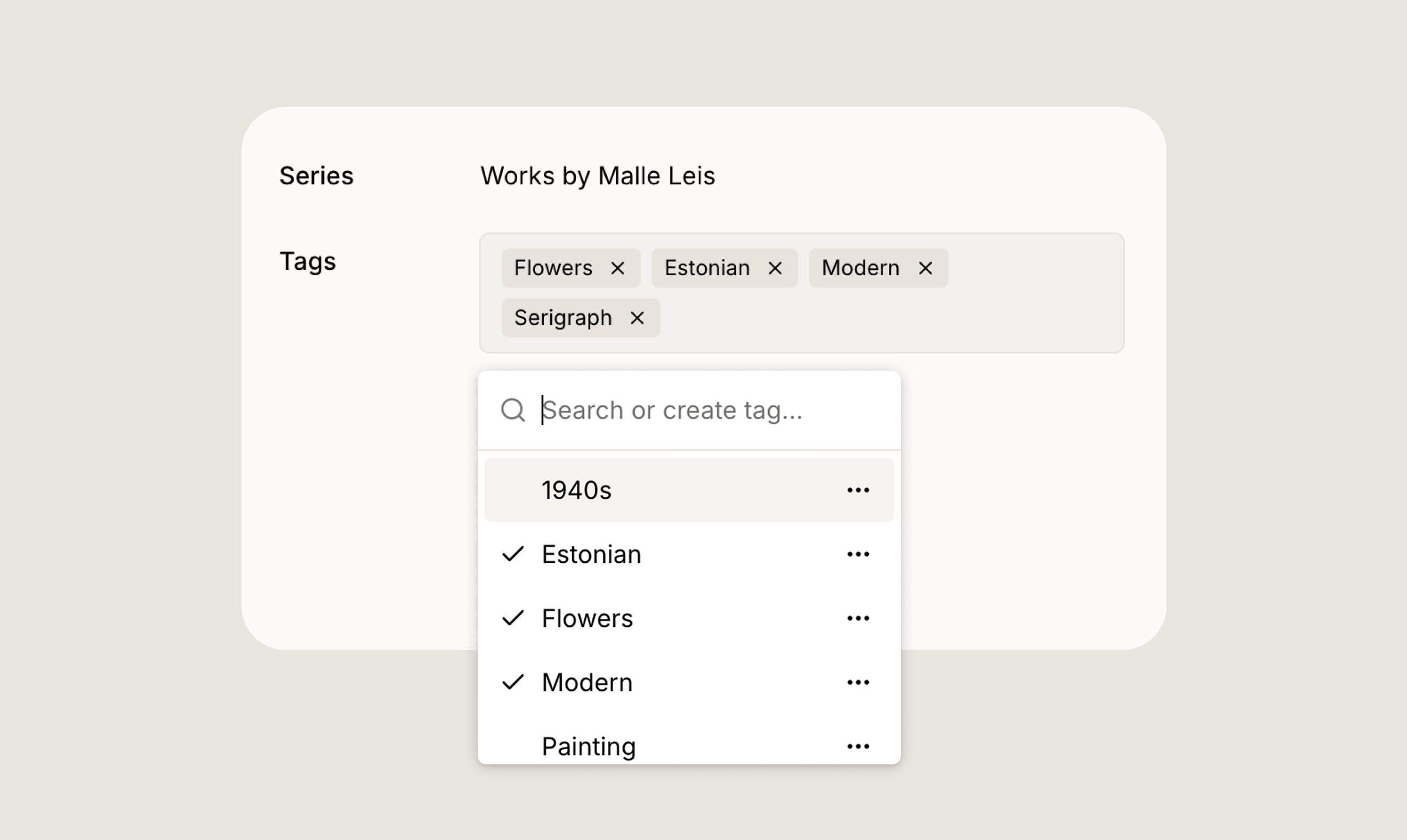 Series and tags are two flexible ways to organise and categorise artworks in Artopia. Use them together for powerful filtering and navigation across your collection.
## Series
A series groups related artworks together, for example, works that belong to the same conceptual body of work or a curated selection you want to keep together.
* Each artwork can belong to **one series**.
* Assign a series from the **Series** field on the artwork record. Search for an existing series by name, or type a new name to create one on the spot.
* Rename or delete a series at any time from the same dropdown without affecting the artworks assigned to it.
## Tags
Tags are a flexible labelling system that lets you apply multiple labels to a single artwork, so you can categorise works across more than one dimension at once.
* An artwork can have **multiple tags**.
* Use tags to label works by motif (e.g. **Portrait**, **Flowers**), style (e.g. **Modern**, **Painting**), time period (e.g. **1960s**), or any other criteria that suits your collection.
* Add a tag by searching for an existing one or typing a new name to create it. Delete a tag at any time from the tag dropdown.
## Using series and tags with bulk actions
Series and tags become especially powerful when combined with bulk actions. Select multiple artworks in the Artworks view, then open the **Actions** menu to apply or remove a series or tags across your entire selection at once, no need to update each record individually.
Learn more in [Bulk Actions](/features/bulk-actions).
Filter your collection by series, tags, status, artist, and more.
Apply series, tags, and other changes across multiple artworks at once.
## Related topics
- [Search, filter, and sort artworks](/features/filtering-artworks.md)
- [Artworks](/features/artworks.md)
- [Bulk actions](/features/bulk-actions.md)
Series and tags are two flexible ways to organise and categorise artworks in Artopia. Use them together for powerful filtering and navigation across your collection.
## Series
A series groups related artworks together, for example, works that belong to the same conceptual body of work or a curated selection you want to keep together.
* Each artwork can belong to **one series**.
* Assign a series from the **Series** field on the artwork record. Search for an existing series by name, or type a new name to create one on the spot.
* Rename or delete a series at any time from the same dropdown without affecting the artworks assigned to it.
## Tags
Tags are a flexible labelling system that lets you apply multiple labels to a single artwork, so you can categorise works across more than one dimension at once.
* An artwork can have **multiple tags**.
* Use tags to label works by motif (e.g. **Portrait**, **Flowers**), style (e.g. **Modern**, **Painting**), time period (e.g. **1960s**), or any other criteria that suits your collection.
* Add a tag by searching for an existing one or typing a new name to create it. Delete a tag at any time from the tag dropdown.
## Using series and tags with bulk actions
Series and tags become especially powerful when combined with bulk actions. Select multiple artworks in the Artworks view, then open the **Actions** menu to apply or remove a series or tags across your entire selection at once, no need to update each record individually.
Learn more in [Bulk Actions](/features/bulk-actions).
Filter your collection by series, tags, status, artist, and more.
Apply series, tags, and other changes across multiple artworks at once.
## Related topics
- [Search, filter, and sort artworks](/features/filtering-artworks.md)
- [Artworks](/features/artworks.md)
- [Bulk actions](/features/bulk-actions.md)