> ## Documentation Index
> Fetch the complete documentation index at: https://learn.art-opia.com/llms.txt
> Use this file to discover all available pages before exploring further.
# Transfer artworks
> Send an artwork together with its image, details, provenance and selected documents from your collection to another collector's Artopia account, using only their email address.
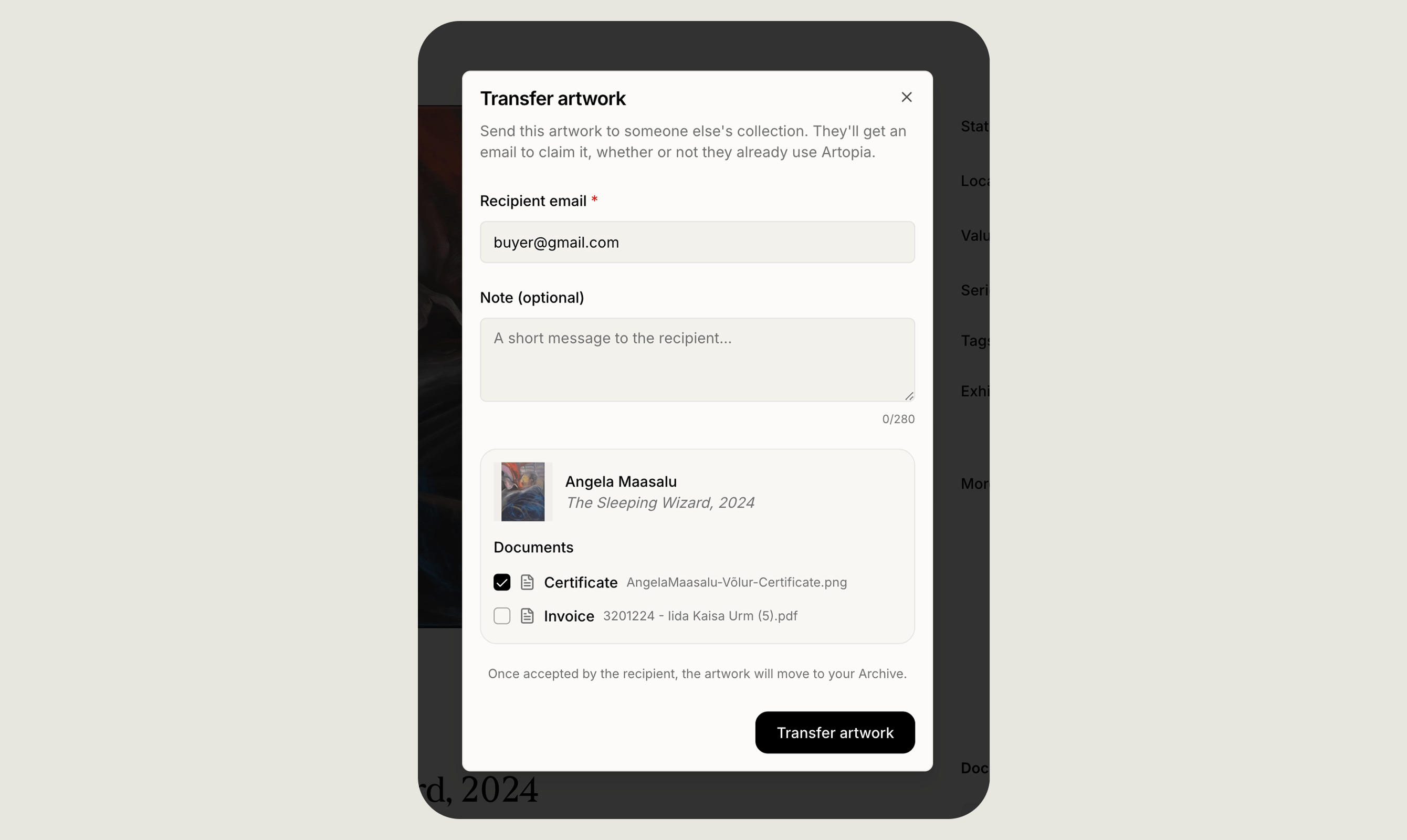 Transfers let you send a full [artwork record](/learn/artwork-records) to someone else's Artopia account using only their email address. The record travels with its image, details, provenance notes and any documents you choose to include. The recipient gets an email invitation, opens a secure link and adds the piece straight into their own collection.
Use a transfer when a work changes hands, whether through a sale, a gift or a move between family members, and you want the receiving collector to inherit the full documentation rather than build it again from scratch.
## Sending an artwork
From the artwork detail page, choose **Transfer artwork**.
The recipient doesn't need an Artopia account yet. The invitation will guide them through creating one.
Up to 280 characters. Useful for context, a message or a reference.
Everything attached to the artwork is listed, whether certificates of authenticity, invoices or condition reports, and you decide individually what travels with it.
The recipient receives an email with a link to claim the work. Once they accept, your copy moves to your **Archive** automatically.
## Tracking what you have sent
Open **Activity** and go to **Sent** to see every transfer you have started. Each entry shows the artwork, the recipient's email and the date it went out, along with where it has got to:
* **Transfer sent**, the invitation has been delivered and you are waiting on the recipient
* **Claimed**, they accepted and added the work to their collection
* **Declined**, they turned it down
* **Expired**, the invitation was not claimed in time
* **Cancelled**, you cancelled before they accepted
While a transfer is still pending you can cancel it. Once it has been claimed, declined, expired or cancelled you can clear it from the list. Clearing only hides it from your own view and does not affect the recipient's copy.
## Receiving an artwork
When someone sends you a work, you get an email with a link to claim it. The page shows a preview of the piece, with its image, title, artist, dimensions and medium, alongside any note from the sender. From there you can either open it in Artopia to accept, or decline the transfer.
If you are not signed in, the link takes you to sign up or log in with the right email already filled in. A transfer is tied to the address it was sent to, so if you are signed in as a different account you will not be able to accept or decline until you switch.
### Accepting from Activity
Pending invitations also appear under **Activity**, in **Received**. Opening one lets you decide how the piece lands in your collection: which collection it joins, what status it arrives with and, if you use locations, where it is kept.
Choose **Add to collection** to accept, or **Decline** to turn it down. When you accept, the artwork and every included file is copied into your collection and the sender is notified.
## Emails along the way
Artopia emails both sides as a transfer progresses.
| Event | Who gets it | What it says |
| ------------- | ----------- | ------------------------------------------- |
| **Invited** | Recipient | Claim link to review and accept the artwork |
| **Accepted** | Sender | The recipient claimed the artwork |
| **Declined** | Sender | The recipient turned down the transfer |
| **Cancelled** | Recipient | The sender cancelled before acceptance |
| **Expired** | Sender | The invite was not claimed in time |
## Privacy and security
Claim links only work while a transfer is pending, and each one is tied to the recipient's email address, so an invitation cannot be claimed from another account. The link also clears itself from the browser address bar once the page has loaded, so it cannot be passed on by accident afterwards.
Documents travel with a transfer only if you include them when sending.
## Related topics
- [Artworks](/features/artworks.md)
- [Add artwork](/learn/add-artwork.md)
- [Inventory numbering](/features/inventory-numbering.md)
Transfers let you send a full [artwork record](/learn/artwork-records) to someone else's Artopia account using only their email address. The record travels with its image, details, provenance notes and any documents you choose to include. The recipient gets an email invitation, opens a secure link and adds the piece straight into their own collection.
Use a transfer when a work changes hands, whether through a sale, a gift or a move between family members, and you want the receiving collector to inherit the full documentation rather than build it again from scratch.
## Sending an artwork
From the artwork detail page, choose **Transfer artwork**.
The recipient doesn't need an Artopia account yet. The invitation will guide them through creating one.
Up to 280 characters. Useful for context, a message or a reference.
Everything attached to the artwork is listed, whether certificates of authenticity, invoices or condition reports, and you decide individually what travels with it.
The recipient receives an email with a link to claim the work. Once they accept, your copy moves to your **Archive** automatically.
## Tracking what you have sent
Open **Activity** and go to **Sent** to see every transfer you have started. Each entry shows the artwork, the recipient's email and the date it went out, along with where it has got to:
* **Transfer sent**, the invitation has been delivered and you are waiting on the recipient
* **Claimed**, they accepted and added the work to their collection
* **Declined**, they turned it down
* **Expired**, the invitation was not claimed in time
* **Cancelled**, you cancelled before they accepted
While a transfer is still pending you can cancel it. Once it has been claimed, declined, expired or cancelled you can clear it from the list. Clearing only hides it from your own view and does not affect the recipient's copy.
## Receiving an artwork
When someone sends you a work, you get an email with a link to claim it. The page shows a preview of the piece, with its image, title, artist, dimensions and medium, alongside any note from the sender. From there you can either open it in Artopia to accept, or decline the transfer.
If you are not signed in, the link takes you to sign up or log in with the right email already filled in. A transfer is tied to the address it was sent to, so if you are signed in as a different account you will not be able to accept or decline until you switch.
### Accepting from Activity
Pending invitations also appear under **Activity**, in **Received**. Opening one lets you decide how the piece lands in your collection: which collection it joins, what status it arrives with and, if you use locations, where it is kept.
Choose **Add to collection** to accept, or **Decline** to turn it down. When you accept, the artwork and every included file is copied into your collection and the sender is notified.
## Emails along the way
Artopia emails both sides as a transfer progresses.
| Event | Who gets it | What it says |
| ------------- | ----------- | ------------------------------------------- |
| **Invited** | Recipient | Claim link to review and accept the artwork |
| **Accepted** | Sender | The recipient claimed the artwork |
| **Declined** | Sender | The recipient turned down the transfer |
| **Cancelled** | Recipient | The sender cancelled before acceptance |
| **Expired** | Sender | The invite was not claimed in time |
## Privacy and security
Claim links only work while a transfer is pending, and each one is tied to the recipient's email address, so an invitation cannot be claimed from another account. The link also clears itself from the browser address bar once the page has loaded, so it cannot be passed on by accident afterwards.
Documents travel with a transfer only if you include them when sending.
## Related topics
- [Artworks](/features/artworks.md)
- [Add artwork](/learn/add-artwork.md)
- [Inventory numbering](/features/inventory-numbering.md)