> ## Documentation Index
> Fetch the complete documentation index at: https://learn.art-opia.com/llms.txt
> Use this file to discover all available pages before exploring further.
# Add artwork
> Create a new artwork record, the private, single source of truth for a piece in your collection.
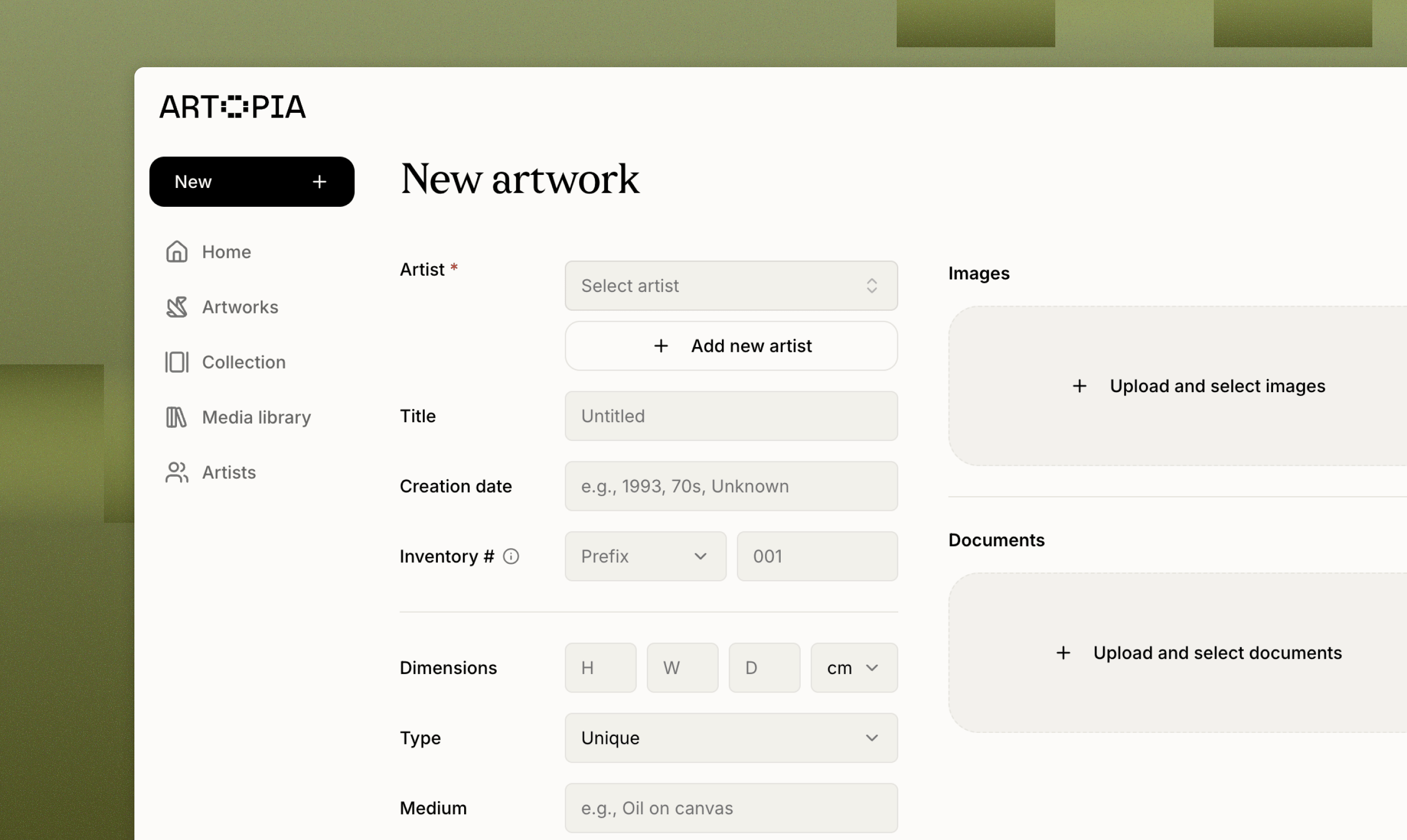 Adding an artwork creates an inventory record in Artopia. Each record is the **single source of truth** for that work, holding the images, documents, dimensions, artist, provenance, values, exhibition history, notes, and current location. Everything else in Artopia, collections, public pages, PDFs, exports, and transfers, reads from this record.
Artworks are **private by default**. They only become visible to others if you add them to a collection and set that collection to public.
## How to add an artwork
There are several ways to open the new artwork form:
* **Sidebar** → **New** → **Artwork** (desktop)
* **Bottom nav** → **Artworks** → **New artwork** (mobile)
* **Get started** checklist → **Fill in artwork details**
* **Create a new artist**, Artopia asks if you want to add an artwork for them
New artworks are added to your currently active collection. You can move them later.
## Entering artwork info
Only an **artist** is required to save an artwork. Every other field is optional so you can add works quickly and fill in the details over time. Common fields include title, creation date, dimensions, medium, edition, signature, framing, series, tags, inventory number, location, and status.
For the full list of fields and how each one works, see [Artwork records](/artworks/artwork-records).
## Images and documents
Add images from your media library or upload new ones. You can add multiple images for each artwork.
Attach certificates of authenticity, invoices, appraisals, condition reports, and other files.
## Value history
Track the work's financial history as a unified log of entries:
* **Acquisition**: How you got the work (purchase, gift, inheritance), with price, date, and source.
* **Valuation**: Third-party or personal valuations over time, with optional supporting documents.
* **Valuation**: Insurance replacement value
* **Sale**: Sale records with buyer, price, and date.
Entries are ordered chronologically and used for insurance PDFs and portfolio value reporting.
## Provenance, exhibitions, and notes
* **Provenance**: The ownership history of the work. Each entry captures the owner, location, time or period, notes, and any linked documents or images.
* **Exhibitions**: Where the work has been shown (venue, city, dates, exhibition title).
* **Condition report**: Log condition entries over time, each with a description, notes, and linked documents or images.
* **Public description**: Free-form entries that describes the artwork and that can be shared publicly if you decide to create a public collection page.
* **Private notes**: Free-form entries for correspondence, research, or reminders. Notes stay private to you.
## What you can do next
Once an artwork is saved, you can:
* **Add it to a public collection** to share it via a public page.
* **Export as PDF** (single or bulk) for insurance, dealers, or personal records.
* **Transfer the record** to another Artopia user, e.g. when selling or gifting.
If you have any questions, reach out at [hello@art-opia.com](mailto:hello@art-opia.com)
## Related topics
- [Get started with your art collection](/learn/get-started.md)
- [Artworks](/features/artworks.md)
- [June 2026](/updates/june-2026.md)
Adding an artwork creates an inventory record in Artopia. Each record is the **single source of truth** for that work, holding the images, documents, dimensions, artist, provenance, values, exhibition history, notes, and current location. Everything else in Artopia, collections, public pages, PDFs, exports, and transfers, reads from this record.
Artworks are **private by default**. They only become visible to others if you add them to a collection and set that collection to public.
## How to add an artwork
There are several ways to open the new artwork form:
* **Sidebar** → **New** → **Artwork** (desktop)
* **Bottom nav** → **Artworks** → **New artwork** (mobile)
* **Get started** checklist → **Fill in artwork details**
* **Create a new artist**, Artopia asks if you want to add an artwork for them
New artworks are added to your currently active collection. You can move them later.
## Entering artwork info
Only an **artist** is required to save an artwork. Every other field is optional so you can add works quickly and fill in the details over time. Common fields include title, creation date, dimensions, medium, edition, signature, framing, series, tags, inventory number, location, and status.
For the full list of fields and how each one works, see [Artwork records](/artworks/artwork-records).
## Images and documents
Add images from your media library or upload new ones. You can add multiple images for each artwork.
Attach certificates of authenticity, invoices, appraisals, condition reports, and other files.
## Value history
Track the work's financial history as a unified log of entries:
* **Acquisition**: How you got the work (purchase, gift, inheritance), with price, date, and source.
* **Valuation**: Third-party or personal valuations over time, with optional supporting documents.
* **Valuation**: Insurance replacement value
* **Sale**: Sale records with buyer, price, and date.
Entries are ordered chronologically and used for insurance PDFs and portfolio value reporting.
## Provenance, exhibitions, and notes
* **Provenance**: The ownership history of the work. Each entry captures the owner, location, time or period, notes, and any linked documents or images.
* **Exhibitions**: Where the work has been shown (venue, city, dates, exhibition title).
* **Condition report**: Log condition entries over time, each with a description, notes, and linked documents or images.
* **Public description**: Free-form entries that describes the artwork and that can be shared publicly if you decide to create a public collection page.
* **Private notes**: Free-form entries for correspondence, research, or reminders. Notes stay private to you.
## What you can do next
Once an artwork is saved, you can:
* **Add it to a public collection** to share it via a public page.
* **Export as PDF** (single or bulk) for insurance, dealers, or personal records.
* **Transfer the record** to another Artopia user, e.g. when selling or gifting.
If you have any questions, reach out at [hello@art-opia.com](mailto:hello@art-opia.com)
## Related topics
- [Get started with your art collection](/learn/get-started.md)
- [Artworks](/features/artworks.md)
- [June 2026](/updates/june-2026.md)