> ## Documentation Index
> Fetch the complete documentation index at: https://learn.art-opia.com/llms.txt
> Use this file to discover all available pages before exploring further.
# Artwork documents
> Attach certificates of authenticity, invoices, insurance documents, and other files to artwork records in Artopia. Supports PDF, PNG, and JPG.
Each artwork record in Artopia supports attached documents, keeping certificates, invoices, and other paperwork organised alongside your artworks.
## Uploading documents
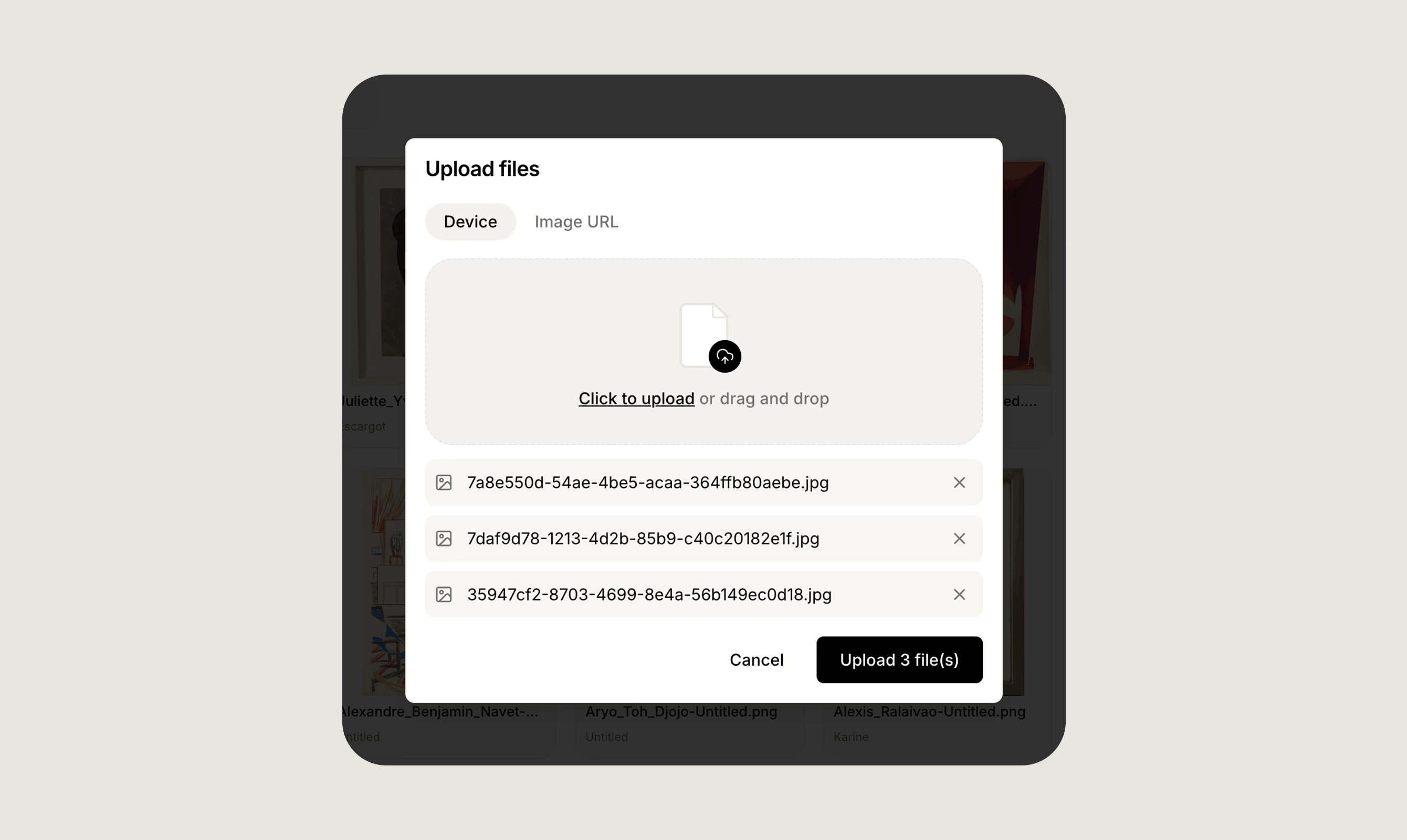
Click the document upload area on the artwork record, or drag and drop one or multiple files directly onto it. Supported formats are **PDF**, **PNG**, **JPG**, and **JPEG**.
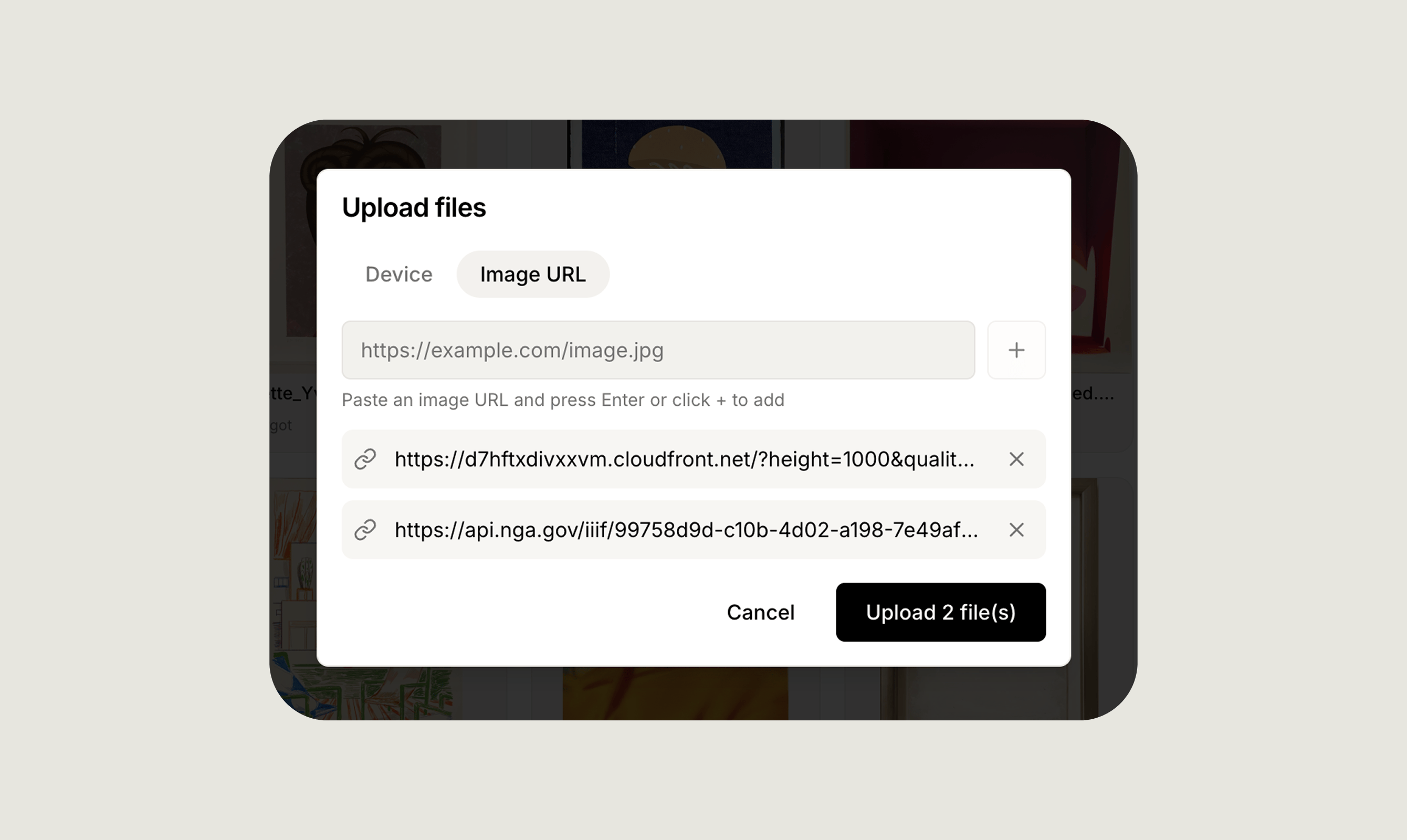
 Paste a link to a document already available online. Artopia downloads the file and saves it to your Media library, so your records stay intact even if the original link expires.
 ## Document types
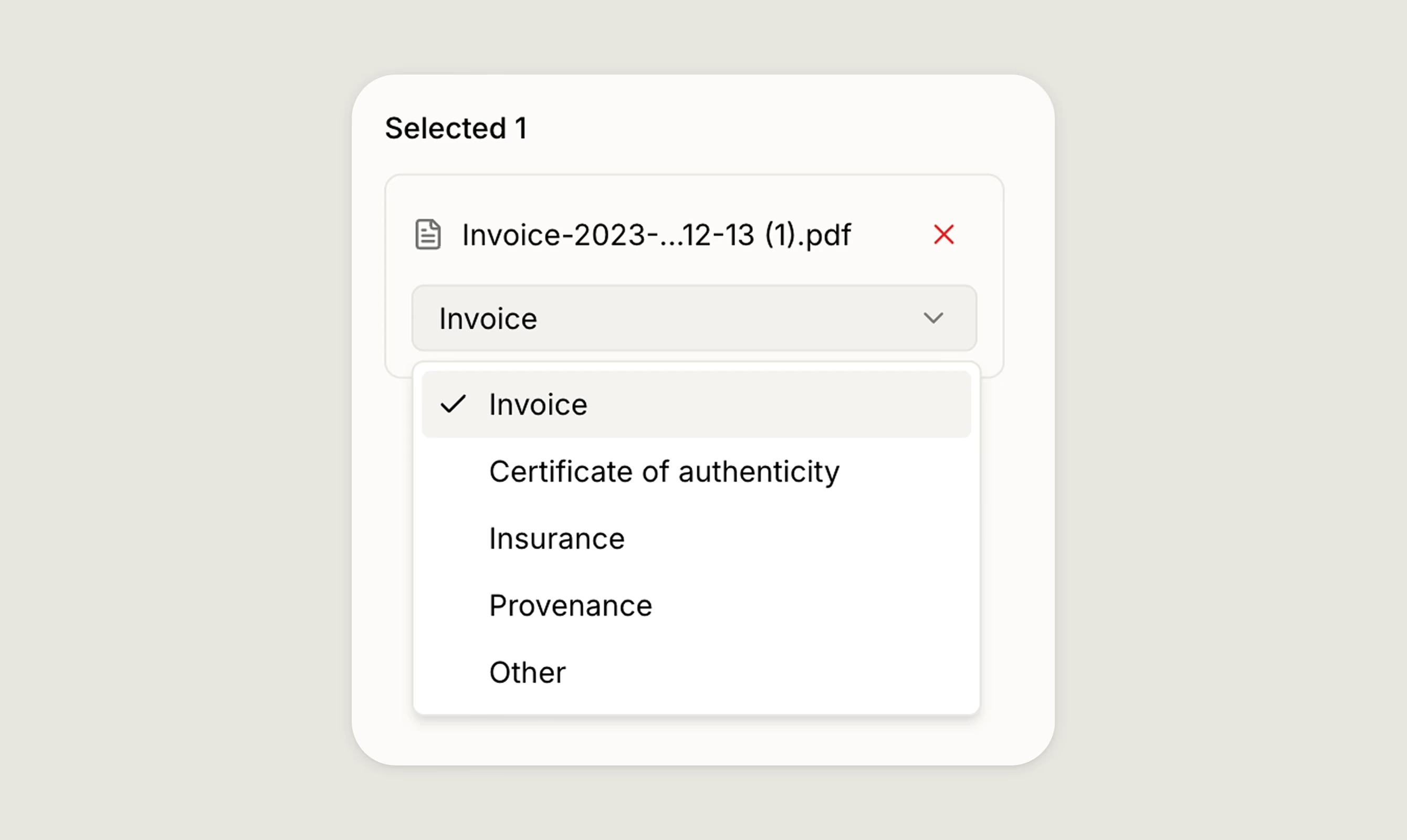
When you attach a document, assign it one of the following types to keep your records organised:
* **Invoice:** Purchase receipts or sales invoices associated with the work.
* **Certificate of authenticity:** Official documentation confirming the work's authenticity.
* **Insurance:** Insurance certificates or valuation documents.
* **Provenance:** Historical ownership records and supporting paperwork.
* **Other:** Any additional document that does not fit the categories above.
## Document types
When you attach a document, assign it one of the following types to keep your records organised:
* **Invoice:** Purchase receipts or sales invoices associated with the work.
* **Certificate of authenticity:** Official documentation confirming the work's authenticity.
* **Insurance:** Insurance certificates or valuation documents.
* **Provenance:** Historical ownership records and supporting paperwork.
* **Other:** Any additional document that does not fit the categories above.
 ## Media library
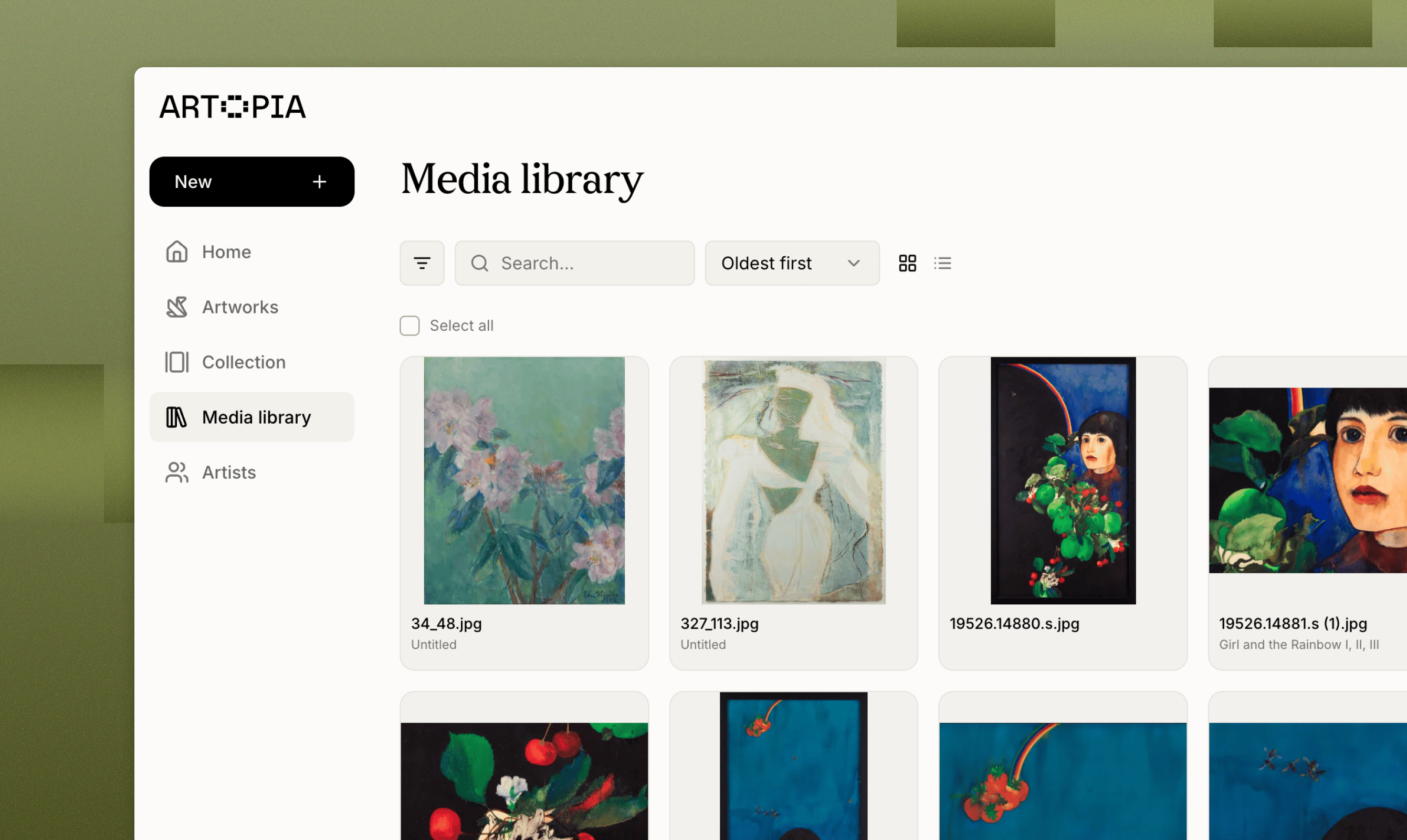
All documents are accessible alongside images in the **Media library**, giving you a single place to manage every file in your account. From the library you can:
* Browse all documents across your collection.
* Search by title or filename to find a specific file quickly.
* Preview a document and see which artwork it is linked to.
* Upload documents in bulk directly from the library, without opening individual artwork records.
## Media library
All documents are accessible alongside images in the **Media library**, giving you a single place to manage every file in your account. From the library you can:
* Browse all documents across your collection.
* Search by title or filename to find a specific file quickly.
* Preview a document and see which artwork it is linked to.
* Upload documents in bulk directly from the library, without opening individual artwork records.
 ## Downloading documents
You can download any document at any time from the Media library. Select the file you want and use the download option to save it to your device.
For full details on organising and managing all your files, see the [Media Library](/features/media-library) guide.
## Related topics
- [Add artwork](/learn/add-artwork.md)
- [Track provenance](/learn/track-provenance.md)
- [Artworks](/features/artworks.md)
## Downloading documents
You can download any document at any time from the Media library. Select the file you want and use the download option to save it to your device.
For full details on organising and managing all your files, see the [Media Library](/features/media-library) guide.
## Related topics
- [Add artwork](/learn/add-artwork.md)
- [Track provenance](/learn/track-provenance.md)
- [Artworks](/features/artworks.md)