> ## Documentation Index
> Fetch the complete documentation index at: https://learn.art-opia.com/llms.txt
> Use this file to discover all available pages before exploring further.
# Artwork images
> Upload multiple images to each artwork record in Artopia. Learn how to set the primary image, upload from a URL, and manage files in the Media library.
Each artwork in Artopia supports multiple images, making it easy to capture different views such as the front, back, and detail shots.
## Uploading images
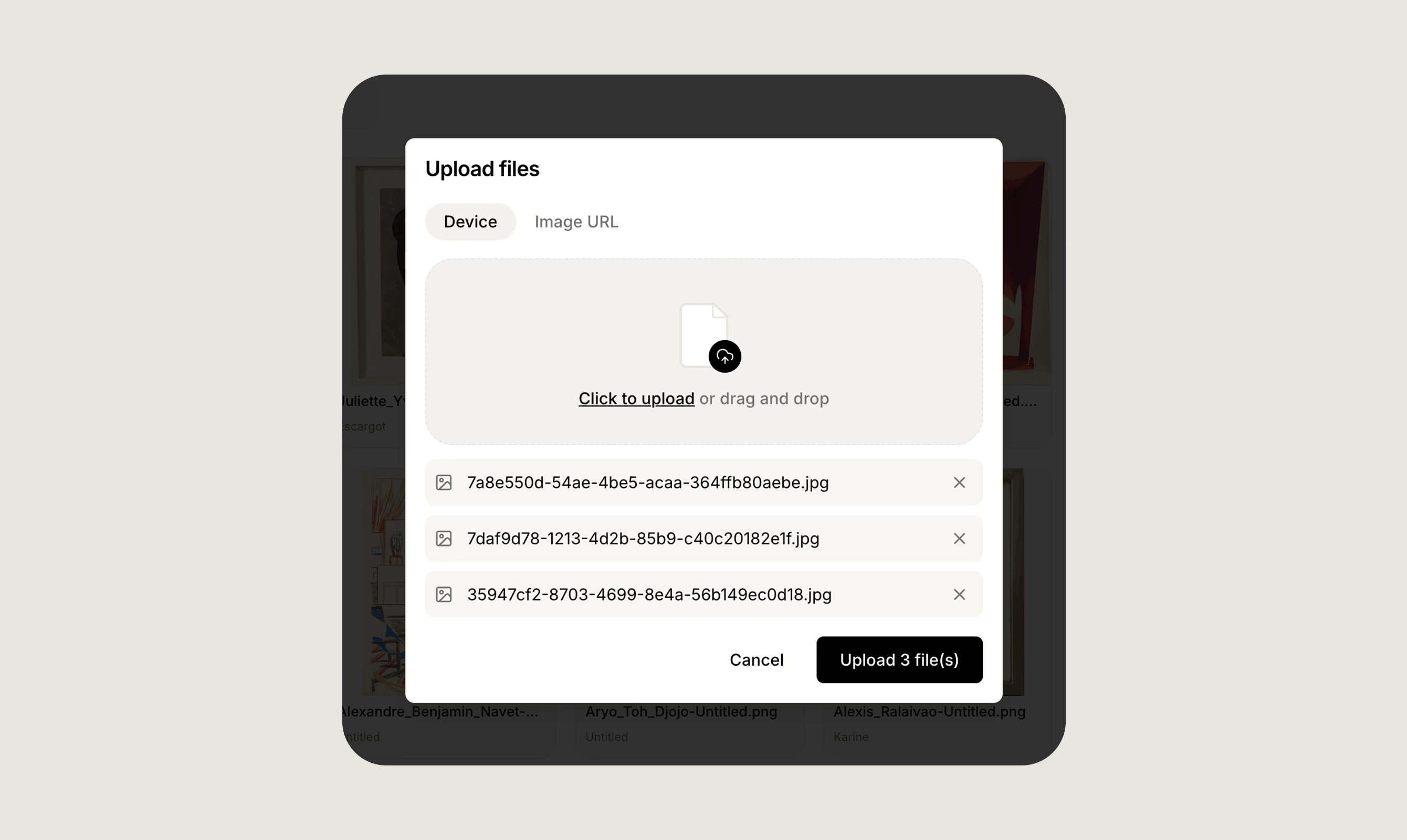
Click the image upload area on the artwork record, or drag and drop one or multiple files directly onto it. You can upload several images at once to save time.
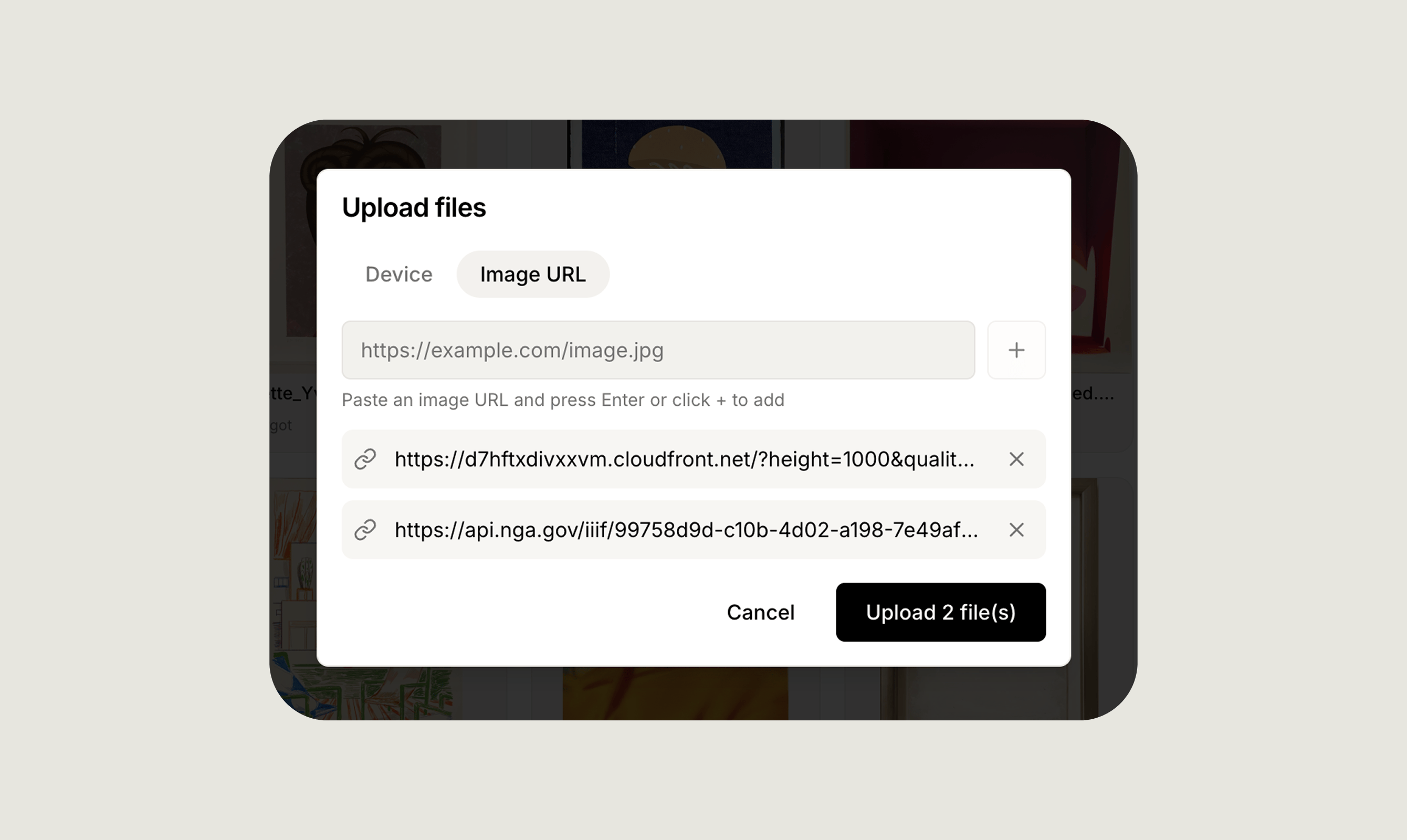
 Paste a link to any image already available online. Artopia downloads the file and saves it to your Media library, so your records stay intact even if the original link expires.
 ## Primary image
The first image you upload is automatically marked as **Primary** and used as the artwork thumbnail throughout Artopia. The Primary image is shown in list views, reports, and anywhere the artwork is displayed. You can change which image is Primary at any time by selecting a different image on the record.
## Media library
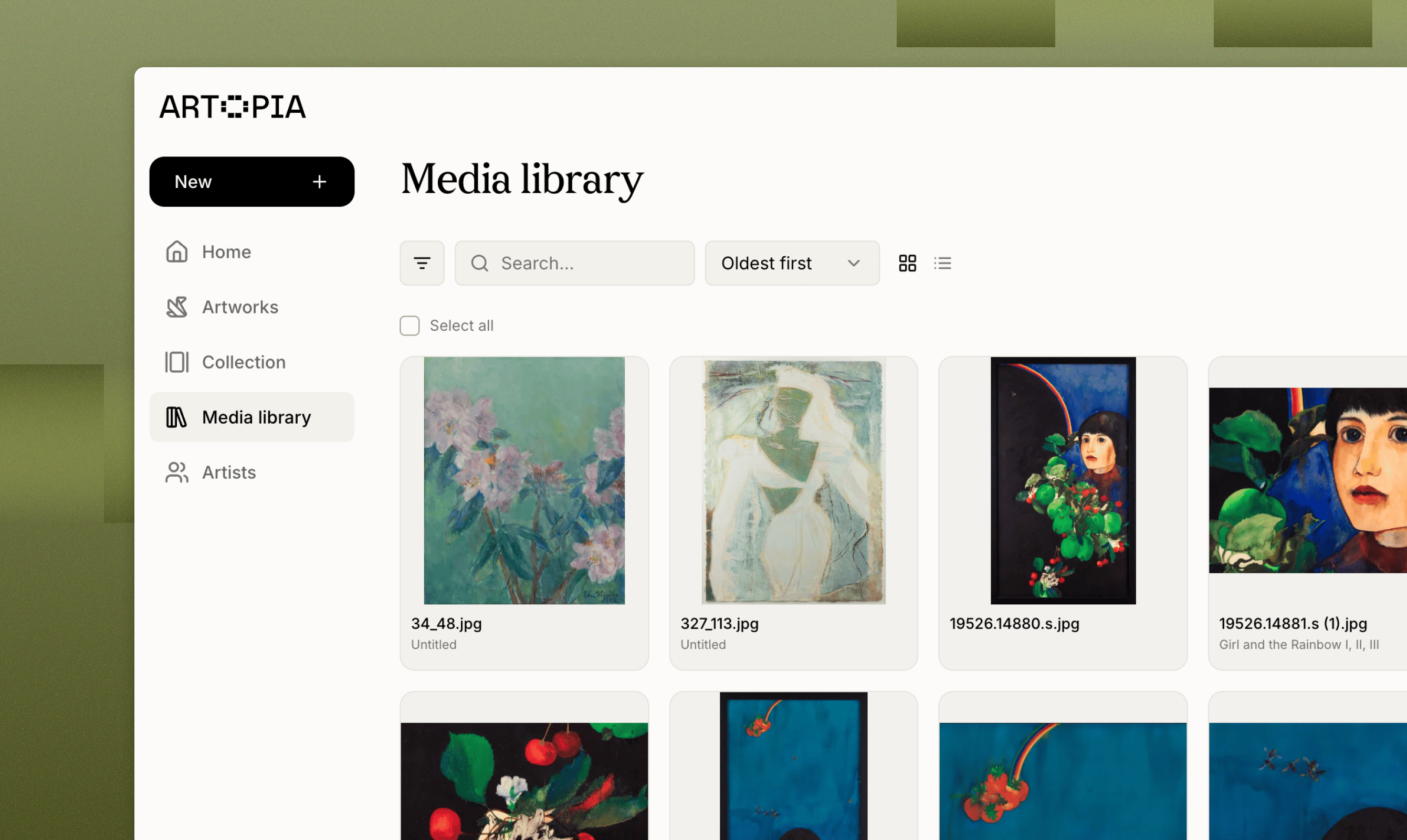
All uploaded images are accessible from the **Media library**, giving you a central place to manage every file in your account. From the library you can:
* Browse all images across your collection.
* Search by title or filename to find a specific file quickly.
* See which artwork each file is linked to.
* Click any file to view its dimensions, file size, type, and upload date.
* Upload images in bulk directly from the library, without opening individual artwork records.
## Primary image
The first image you upload is automatically marked as **Primary** and used as the artwork thumbnail throughout Artopia. The Primary image is shown in list views, reports, and anywhere the artwork is displayed. You can change which image is Primary at any time by selecting a different image on the record.
## Media library
All uploaded images are accessible from the **Media library**, giving you a central place to manage every file in your account. From the library you can:
* Browse all images across your collection.
* Search by title or filename to find a specific file quickly.
* See which artwork each file is linked to.
* Click any file to view its dimensions, file size, type, and upload date.
* Upload images in bulk directly from the library, without opening individual artwork records.
 ## Downloading images
You can download any image at any time from the Media library. Select the file you want and use the download option to save it to your device.
For full details on organising and managing all your files, see the [Media Library](/features/media-library) guide.
## Related topics
- [Create PDF reports](/features/creating-pdfs.md)
- [Artworks](/features/artworks.md)
- [Add artwork](/learn/add-artwork.md)
## Downloading images
You can download any image at any time from the Media library. Select the file you want and use the download option to save it to your device.
For full details on organising and managing all your files, see the [Media Library](/features/media-library) guide.
## Related topics
- [Create PDF reports](/features/creating-pdfs.md)
- [Artworks](/features/artworks.md)
- [Add artwork](/learn/add-artwork.md)