
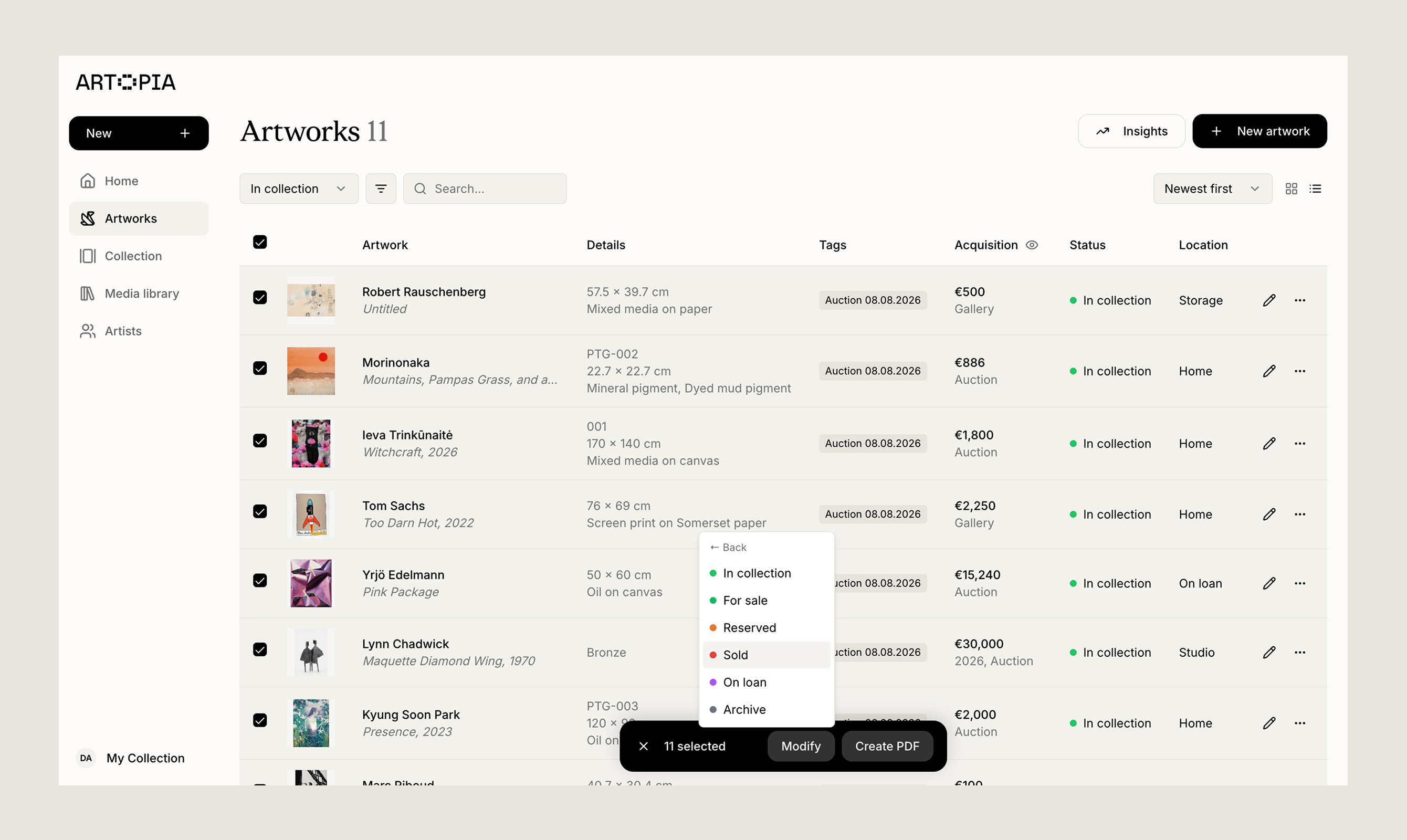
How to use bulk actions
- In list view, click the checkbox next to each artwork you want to include. To select everything currently visible, use the checkbox at the top of the list.
- Once one or more artworks are selected, an Actions button appears at the bottom of the screen.
- Open Actions to see what you can apply to your selection.
What you can change
Series
Series
Assign a series to every selected artwork, or remove one. Useful for grouping works into a series in a single step, or moving them out again.
Status
Status
Update the status of every selected artwork. Choose from In collection, For sale, Reserved, Sold, On loan and Archived, or any status you have created yourself.
Location
Location
Update the location of every selected artwork. Choose from Home, Studio, Storage, On loan, and Other, or any location you have created yourself.
Using bulk actions with filters
Filters and bulk actions work well together. Narrow the list first, then select the results and apply an action. For example, to mark every work by one artist as For sale:- Filter your Artworks view by that artist.
- Use the top checkbox to select all results.
- Open Actions and set the status to For sale.