
Import from a CSV or Excel file
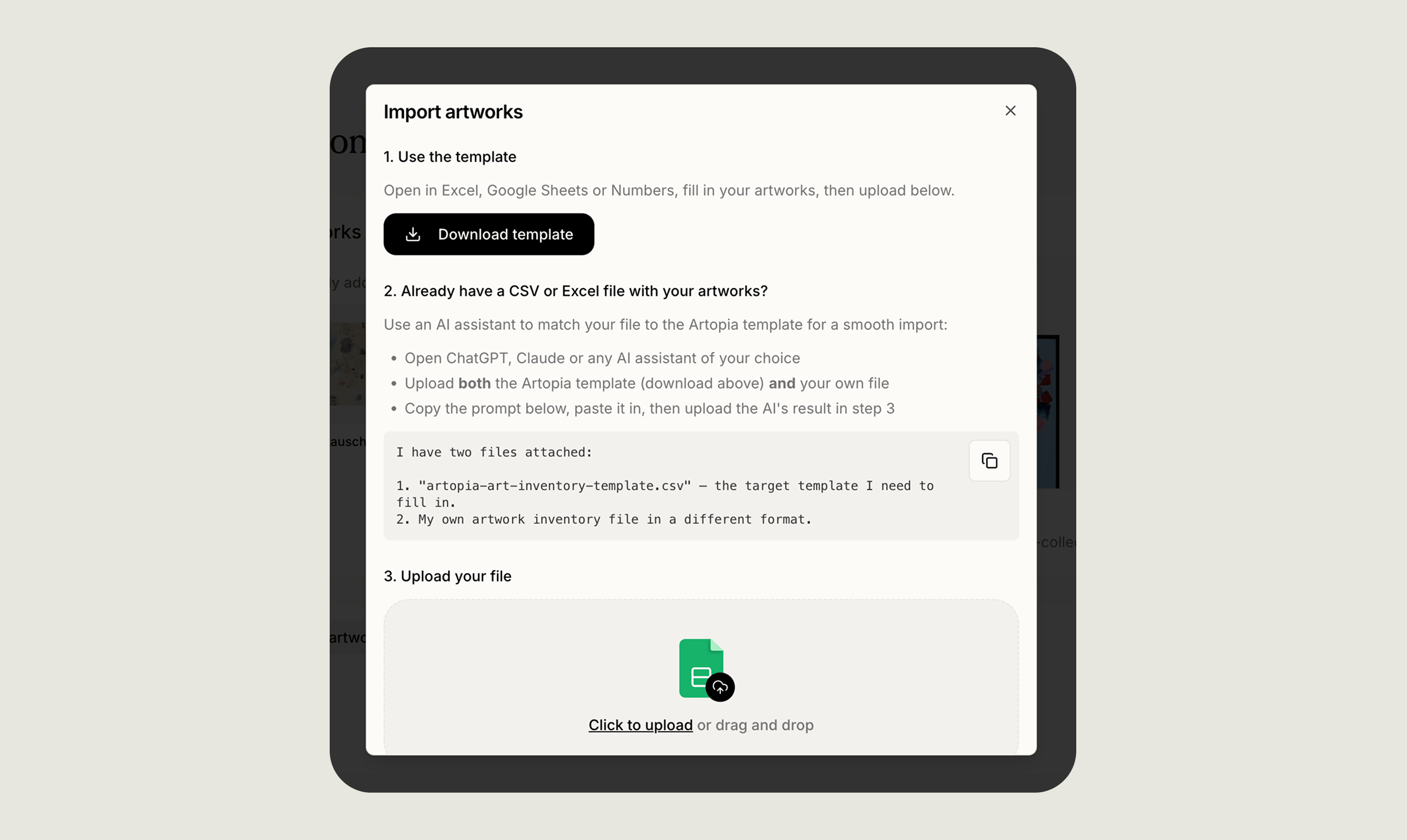
You can import up to 1,000 artworks at a time from a CSV or Excel file. In the sidebar, open the New menu and choose Import artworks. The whole process happens in a single window on top of whatever page you’re on.Step 1. Get the template
Click Download template in the import window to save Artopia’s template file. Open it in Excel, Google Sheets, or Numbers and fill in one row per artwork. The template has 11 columns, in this order:
If you’re starting fresh, fill in the template directly and skip to step 3.
Step 2. Already have your own spreadsheet? (optional)
If your existing file uses different column names, the fastest way to reshape it is to hand it to an AI assistant along with Artopia’s template:1
Open an AI assistant
ChatGPT, Claude, or any other AI assistant that lets you upload files.
2
Upload both files
Add the Artopia template and your own spreadsheet to the same conversation.
3
Paste in the prompt from Artopia
In the import window, click the copy icon next to the step 2 prompt and paste it into the AI.
4
Download the reformatted file
Save the file the AI gives you back, and use that in step 3.
Artopia doesn’t run the AI itself, this is something you do outside the app. If the AI produces a currency code Artopia doesn’t accept, you’ll simply see an error in the preview and can fix it before importing.
Step 3. Upload your file and check the preview
Drop your file into the upload area or click to browse. Artopia accepts CSV, XLSX, and XLS files, and it automatically ignores any empty rows at the end. Once the file is uploaded, you’ll see a preview of every row with its artist, title, and a Status column. Each row is marked as:- ✓ Ready, the row is good to import
- ⚠ Warning, the row will import, but with a default value filling in a missing field
- ✗ Error, the row has a problem that needs to be fixed before you can import
Warnings vs. errors
Warnings just mean Artopia will fill in a default for you:- Blank Title becomes
Untitled - Blank Artist becomes
Unknown - Blank Unit uses the default unit from your profile
- Blank Currency (when there is a price) uses your default currency
- A title is longer than 200 characters
- A Unit value isn’t
cmorin - Height, Width, Depth, or Purchase Price contains something other than a number
- A Currency code isn’t recognised
- Purchase Year isn’t a four-digit year
Step 4. Confirm the import
When everything looks right, click Import N artworks. Artopia will show a spinner with the message “Importing N artworks… Please don’t close this window.” Small files import almost instantly; larger files usually take a few seconds. When it’s finished, you’ll see a confirmation like “Import complete, N artworks added, M new artists created”, and Artopia will jump to your Artworks list so you can look through the new entries right away.Limits and edge cases
- File size, up to 1,000 artworks per file. If your spreadsheet is bigger, split it and import in batches.
- Plan limits, if an import would take you over your plan’s artwork limit, Artopia won’t save anything and will invite you to upgrade instead.
- Empty files get an “Empty file” message so you know nothing was uploaded.
- Something goes wrong mid-import? You’ll see “Import failed, nothing was saved” with Retry and Back to preview buttons. Your collection stays untouched until the import fully succeeds.
Migrating from another tool
Moving to Artopia from another platform? Email us at app@art-opia.com and we’ll take care of it. We’ve helped collectors migrate from all sorts of places, including:Artlogic
Artlogic
In Artlogic, go to Artworks → Create… → Export… and pick a CSV export. Send us the file and we’ll handle the rest.
Artwork Archive
Artwork Archive
Go to Artworks → Pieces, click New Report, and choose Export to CSV. Send the file to us.
Art Record
Art Record
Open the settings page and choose Download Entire Archive. Art Record will email you a ZIP file with your data after about a day. Forward that to us.
Other tools, Instagram, or a folder of images
Other tools, Instagram, or a folder of images
Excel, Google Sheets, a folder of images, an Instagram feed, another collection app, we’ve probably worked with it before. Get in touch and we’ll figure it out with you.