
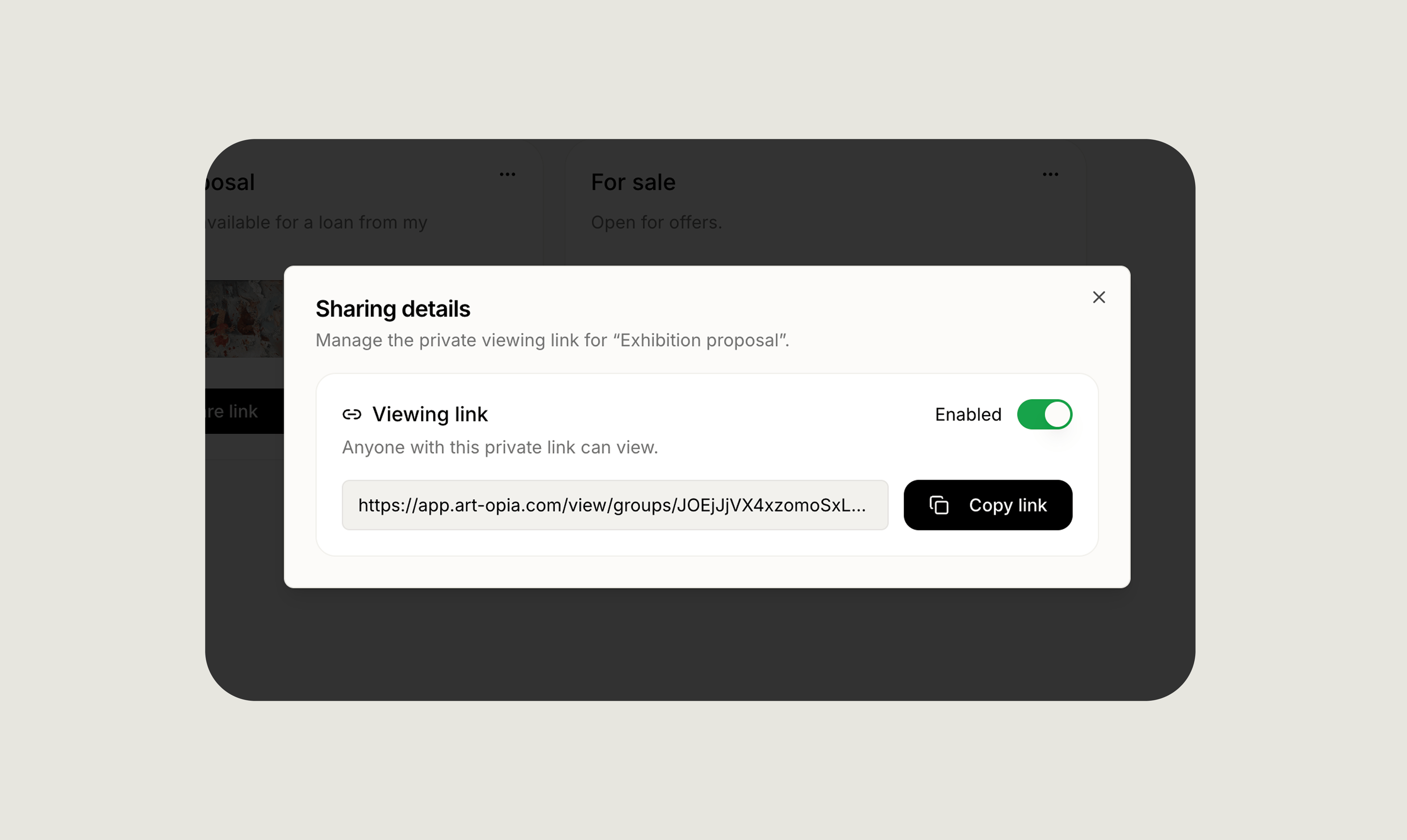
A viewing link works like a key. Anyone who has it can open the room and can forward it to someone else. Share it only with people you trust, and disable it when it is no longer needed.
Creating the selection
Private viewing rooms are created from Artwork groups. Start by creating a group, adding the artworks you want to show and arranging them in the order visitors should see them. The group name and description appear at the top of the viewing room. Use the description to introduce the selection, explain its purpose or add context for the recipient.Copying the viewing link
You can copy a group’s link in two places:- On the Groups page, select the copy button on the group card.
- Open the group and use Copy link in the Viewing link section.
What visitors see
The viewing room shows:- The group name and description
- The selected artworks in your chosen order
- Each artwork’s primary image
- Artist, title and creation date
- Dimensions, medium and edition, when available
- The public description from the artwork record
Disabling and enabling access
Use the switch in the Viewing link section of the group page to control access.- Enabled: Anyone with the link can open the viewing room.
- Disabled: The viewing room becomes unavailable, including to people who used the link before.
Private viewing room or public collection?
Both features let you choose which artworks other people see, but they serve different purposes.
See Your public collection for how to build and publish a collection page.
Ways to use private viewing rooms
Advisor or curator review
Advisor or curator review
Share a shortlist before a meeting so the recipient can review the works and open each one in detail.
Exhibition planning
Exhibition planning
Present a proposed selection in its intended order without exposing unrelated works from your collection.
Client or collector presentation
Client or collector presentation
Send a clean, focused room that works on desktop and mobile. If the presentation also needs prices or private supporting information, create a separate PDF with only the fields you want to include.
Loan or project discussion
Loan or project discussion
Gather the works connected to a possible loan, publication, installation or other project and share the visual selection with the people involved.
Before you share
- Give the group a clear name.
- Add a short description for context.
- Check the artwork order.
- Confirm each work has the right primary image and public description.
- Open the viewing link and review the room.
- Disable the link when the review or project is finished.
Artwork groups
Create, arrange and export flexible selections of artworks.
Your public collection
Build an ongoing public page for your collection.