
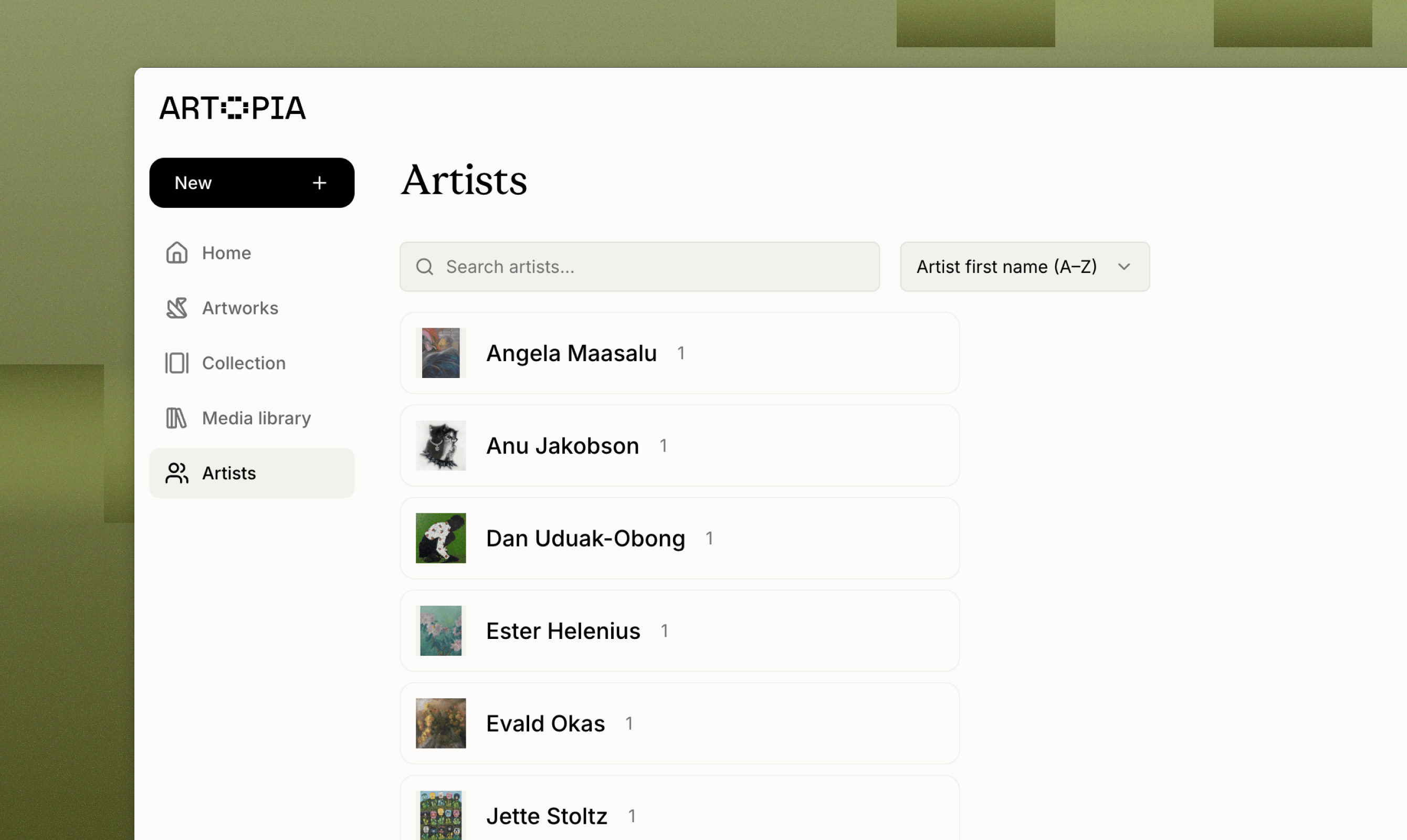
Where to find it
Artists has its own section in the sidebar on desktop, and in the bottom navigation on mobile. Clicking any artist opens their own page.The Artists list
The list shows every artist in your collection, with a search box, a sort menu and a New artist button at the top. You can sort by last name or by first name, both A to Z. Last name is the default. Each artist appears as a slim row with a thumbnail, their display name and the number of works linked to them. Clicking a row opens their page. The thumbnail is pulled from one of the artist’s artworks rather than their profile photo, so a new artist with no works yet shows a placeholder until you link one. Before you have added anyone, the list is empty and prompts you to add your first artist.Adding an artist
New artist opens a short form. First name, Last name, Known as and Years are visible straight away, and only Last name is required. Add more info opens the rest: Nationality, Based in, Profile photo and Biography. Profile photos are chosen from your Media library.Your input is saved as you go, so closing the form by accident does not lose what you have typed.
Artist detail page
Each artist has a page with their profile photo and display name, plus their legal name underneath if the two differ. Below that is a line combining nationality, years and where they are based, followed by their biography if you have added one. The rest of the page is a grid of their works, each showing title, dimensions and medium. More load as you scroll.Linking artists to artworks
On the new artwork or edit artwork forms, the Artist field is searchable. Start typing to narrow the list, or open it to browse. If you have not added any artists yet, the field prompts you to create your first one. Otherwise you will find an Add new artist option, which opens the same form without leaving the artwork you are working on. The artist you create is selected automatically. After creating an artist anywhere in Artopia, you are asked whether you would like to add an artwork for them. Saying yes takes you straight into the new artwork form with the artist already filled in. Creating your first artist also completes the Artists step in the Get started checklist.What is public
On public collection and public artwork pages, only the artist’s display name is shown. It appears next to each artwork and is used in page titles.Biography, nationality, Based in and profile photo are never shown publicly, and artists do not have public pages of their own.
Imports and exports
- CSV export includes a single Artist column with the display name. See Exporting data.
- CSV import recognises an Artist column and splits full names into first, last and known as. Single-word names are kept as they are. Names are matched against your existing artists, and new records are created for anyone not already in your collection. If an import fails partway through, nothing is saved, so you are never left with half-created artists.
- PDF export includes the artist name on every artwork page. See Creating PDFs.
- Media ZIP export organises files into folders named after the artist and the artwork.