Give each artwork a custom inventory number in Artopia, like PTG-007 or 2026-001, with reusable prefixes, auto-suggested next numbers, sorting and filtering.
Inventory numbering is an optional way to tag each artwork with your own reference ID, the kind of code a gallery, studio or private collection uses on labels, invoices and shipping paperwork (e.g. PTG-007, SCULP-014, 2026-001).Every inventory number has two parts, and both are optional:
Prefix, a short label you define, such as PTG, DRW, or 2026
Number, digits only, padded to at least three digits when displayed, so7 shows as 007 and 1500 stays 1500
You can leave both blank, use a number on its own, or use both together. The displayed result is eitherPTG-007or just 007. A prefix without a number isn’t shown anywhere.
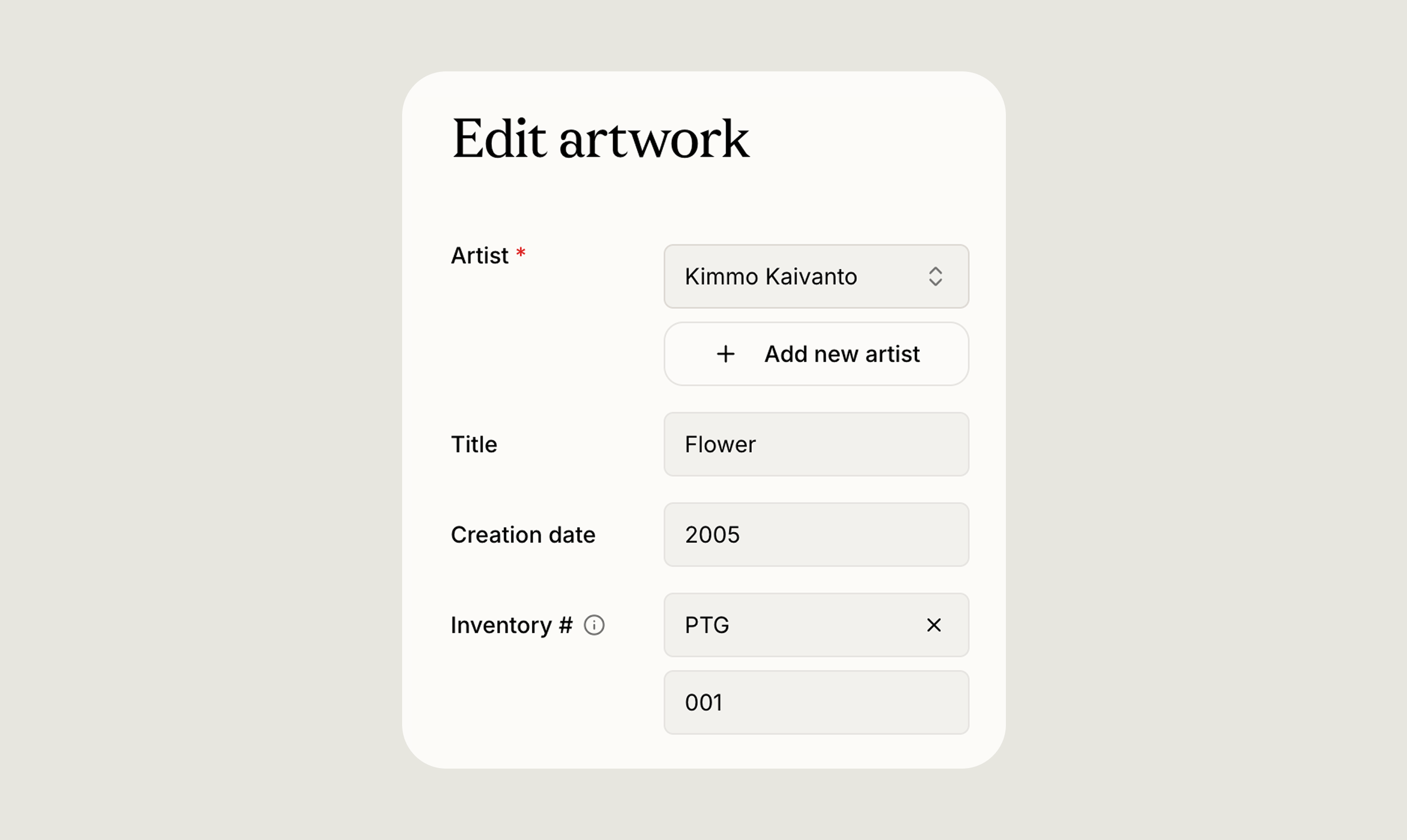
On the artwork create or edit form, look for the Inventory # section (with a small info tooltip). It has two side-by-side inputs:
A Prefix dropdown
A Number input
Once set, the number appears under the artist and title on artwork cards and rows, in the metadata on the artwork page, and as both a sort option and a filter in the Artworks list.
Click the Prefix field to see every prefix you have used in the current collection, listed alphabetically. To create a new one, start typing. If the name does not match anything you have used before, an option to create it appears at the bottom of the list. Selecting it saves the prefix and applies it to the artwork you are editing.Matching ignores capitalisation, so typing drawing when Drawing already exists reuses the existing prefix rather than creating a near-duplicate.Each prefix has a menu with Rename and Delete:
Renaming updates the prefix on every artwork that uses it. You cannot rename a prefix to a name already in use.
Deleting removes the prefix from any artworks that use it and takes it out of your suggestions. The numbers themselves are kept, only the prefix label goes.
To clear the prefix on a single artwork without deleting it everywhere, click the X inside the Prefix field.Prefixes belong to the collection they were created in, so switching collections shows a different list.
The Number field accepts digits only. Anything else you type is ignored. When you leave the field, the value is padded to at least three digits (7 → 007, 12 → 012, 1500 → 1500).Whenever you change the prefix, Artopia suggests the next available number for it: the highest number currently in use for that prefix, plus one. If the prefix is new, it starts at001 .
Changing the prefix on an artwork that already has a number replaces that number with a new suggestion, and clearing the prefix clears the number too. The suggestion is only a starting point, so you can always type your own.
If you enter a number another artwork in the same collection already uses, a small note appears under the field:
“This inventory number is already in use.”
It is a reminder rather than a block. Artopia does not enforce unique numbers, and you can save either way.
In the Artworks list, sort by Inventory # to order works by prefix alphabetically, then by number. Artworks with no inventory number at all come last.To filter, open Filter by and choose Inventory #. You can search your prefixes, select several at once, and use the No prefix option to find works without one. Active filters appear as chips at the top of the list. Filtering by a specific number or range is not supported, only by prefix.
When you transfer an artwork to another Artopia user, their copy arrives with no prefix and no number, so they can apply their own scheme. Choosing a prefix in their collection triggers the usual suggestion. Your own artwork keeps its inventory number.
Year-based prefixes (2026-, 2027-) show at a glance when a work entered the collection.
Medium-based prefixes (PTG- for paintings, DRW- for drawings, SCULP- for sculpture) group similar works together when sorting.
Padding keeps the sort order clean. PTG-002 comes before PTG-010, which wouldn’t happen with 2 and 10.
There is no dedicated “Inventory settings” page. Creating, renaming, and deleting prefixes all happen inline from the Prefix dropdown on any artwork form.
Was this page helpful?
{"docsConfig":{"theme":"mint","$schema":"https://mintlify.com/docs.json","name":"Artopia","description":"Artopia is the comprehensive art collection management and inventory platform designed for private collectors, art advisors, galleries, auction houses, and artists. Easily catalog your artworks with complete details, track artwork valuations over time, document provenance records, and securely attach supporting documents including certificates of authenticity and invoices. Whether managing a personal art collection or client portfolios, Artopia streamlines your art inventory management process. Share your collection publicly (optional) with collectors, institutions, and galleries, or keep it private. Key features include bulk artwork import, PDF export, and customizable public collection pages. From emerging collectors building their first collection to established collectors managing extensive inventories, Artopia is the all-in-one art collection management platform you need for complete art documentation and valuation tracking.","colors":{"primary":"#668324","light":"#ABCB62","dark":"#46571f"},"logo":{"light":"https://mintcdn.com/artopia/iD69qRxQlIIMQPDE/images/artopia-logo-black-medium.svg?fit=max\u0026auto=format\u0026n=iD69qRxQlIIMQPDE\u0026q=85\u0026s=b5cba413adee7d56dcd988c14b94b891","dark":"https://mintcdn.com/artopia/iD69qRxQlIIMQPDE/images/artopia-logo-black-medium.svg?fit=max\u0026auto=format\u0026n=iD69qRxQlIIMQPDE\u0026q=85\u0026s=b5cba413adee7d56dcd988c14b94b891","href":"https://art-opia.com/"},"favicon":{"light":"https://mintcdn.com/artopia/ByB_v1wrXQrh95Vh/images/artopia-icon-white-favicon.png?fit=max\u0026auto=format\u0026n=ByB_v1wrXQrh95Vh\u0026q=85\u0026s=5c5832cf6d18cb25c7a7298b48694d1b","dark":"https://mintcdn.com/artopia/ByB_v1wrXQrh95Vh/images/artopia-icon-white-favicon.png?fit=max\u0026auto=format\u0026n=ByB_v1wrXQrh95Vh\u0026q=85\u0026s=5c5832cf6d18cb25c7a7298b48694d1b"},"appearance":{"default":"light","strict":true},"background":{"color":{"light":"#F9F9F0","dark":"#1E1E1E"}},"navbar":{"links":[],"primary":{"type":"button","label":"Go to Artopia","href":"https://app.art-opia.com"}},"footer":{"socials":{"linkedin":"https://www.linkedin.com/company/art-opia","website":"https://art-opia.com/","instagram":"https://instagram.com/app.artopia"}},"seo":{"metatags":{"og:image":"https://framerusercontent.com/assets/cXP2PEnWynwP45Rj4k4mrc3Qa3M.png"}},"icons":{"library":"lucide"},"thumbnails":{"background":"https://mintcdn.com/artopia/1eaVaEkeGHvr4vOp/images/Websitecover.png?fit=max\u0026auto=format\u0026n=1eaVaEkeGHvr4vOp\u0026q=85\u0026s=5ba0f718e7d9a58a3e373b13ab6f78c3"},"styling":{"latex":false},"navigation":{"pages":[]}},"deployment":{"deploymentMetadataValue":{"subdomain":"artopia","hasAudioNarration":false,"actualSubdomain":"artopia","customDomains":["learn.art-opia.com"],"gitSource":{"type":"github","owner":"mintlify-community","repo":"docs-artopia-94f86543","deployBranch":"main","contentDirectory":"","isPrivate":true,"mountPath":"","label":""},"chroma":{"collectionId":"d25fdb28-db47-4eb8-98ea-d7bf733ed857","liveDeploymentHistoryId":"6abe2882a3cd31f3524a07dc","schemaVersion":"v3","latestBuiltDeploymentHistoryId":"6abe2882a3cd31f3524a07dc"},"feedback":{"thumbs":true},"entitlements":{"AI_CHAT":{"status":"DISABLED"}},"buildId":"6abe2882a3cd31f3524a07dc","clientVersion":"0.0.3971","searchFilterCounts":[{"language":"default","tag":"Features","count":30},{"language":"default","tag":"Learn","count":10},{"language":"default","tag":"Updates","count":7},{"language":"default","tag":"Product updates","count":7},{"language":"default","tag":"Help","count":6},{"language":"default","tag":"How to","count":4},{"language":"default","tag":"The basics","count":4},{"language":"default","tag":"Data","count":2},{"language":"default","tag":"Overview","count":2}]},"assistantConfig":{"enableAskAiButton":false,"enableStarterQuestions":false,"enableContextualStarterQuestions":false,"enableAskAiSearchBar":true},"basePath":"","hasChatPermissions":false,"hasWebMcpPermissions":false,"toggles":[{"name":"kill-isr","enabled":true,"variant":{"name":"disabled","enabled":false,"feature_enabled":true},"impressionData":false},{"name":"agent-mintlify-slack","enabled":true,"variant":{"name":"disabled","enabled":false,"feature_enabled":true},"impressionData":false},{"name":"editor-v7-file-tree","enabled":true,"variant":{"name":"disabled","enabled":false,"feature_enabled":true},"impressionData":false},{"name":"agent-integrations-settings","enabled":true,"variant":{"name":"disabled","enabled":false,"feature_enabled":true},"impressionData":false},{"name":"automations-pr-grouping","enabled":true,"variant":{"name":"disabled","enabled":false,"feature_enabled":true},"impressionData":false},{"name":"custom-prefix","enabled":true,"variant":{"name":"disabled","enabled":false,"feature_enabled":true},"impressionData":false},{"name":"analytics-v7","enabled":true,"variant":{"name":"disabled","enabled":false,"feature_enabled":true},"impressionData":false},{"name":"user-flows-analytics","enabled":true,"variant":{"name":"disabled","enabled":false,"feature_enabled":true},"impressionData":false},{"name":"no-publish-flow","enabled":true,"variant":{"name":"disabled","enabled":false,"feature_enabled":true},"impressionData":false},{"name":"workos-onboarding","enabled":true,"variant":{"name":"disabled","enabled":false,"feature_enabled":true},"impressionData":false},{"name":"llms-txt-v2","enabled":true,"variant":{"name":"disabled","enabled":false,"feature_enabled":true},"impressionData":false},{"name":"pause-universal-search-reconcile","enabled":true,"variant":{"name":"disabled","enabled":false,"feature_enabled":true},"impressionData":false},{"name":"snapshot-serving-live","enabled":true,"variant":{"name":"disabled","enabled":false,"feature_enabled":true},"impressionData":false},{"name":"stripTemperatureMiddleware","enabled":true,"variant":{"name":"disabled","enabled":false,"feature_enabled":true},"impressionData":false},{"name":"per-site-search-delta","enabled":true,"variant":{"name":"disabled","enabled":false,"feature_enabled":true},"impressionData":false},{"name":"support-platform-pylon-zendesk","enabled":true,"variant":{"name":"disabled","enabled":false,"feature_enabled":true},"impressionData":false},{"name":"snapshot-serving","enabled":true,"variant":{"name":"disabled","enabled":false,"feature_enabled":true},"impressionData":false},{"name":"instant-rollback","enabled":true,"variant":{"name":"disabled","enabled":false,"feature_enabled":true},"impressionData":false},{"name":"granular-notifications-server","enabled":true,"variant":{"name":"disabled","enabled":false,"feature_enabled":true},"impressionData":false},{"name":"granular-notifications","enabled":true,"variant":{"name":"disabled","enabled":false,"feature_enabled":true},"impressionData":false},{"name":"editor-private-page-search","enabled":true,"variant":{"name":"disabled","enabled":false,"feature_enabled":true},"impressionData":false},{"name":"automations-fable","enabled":true,"variant":{"name":"disabled","enabled":false,"feature_enabled":true},"impressionData":false},{"name":"fixed-ai-action-pricing","enabled":true,"variant":{"name":"disabled","enabled":false,"feature_enabled":true},"impressionData":false},{"name":"automation-resolve-merge-conflict","enabled":true,"variant":{"name":"disabled","enabled":false,"feature_enabled":true},"impressionData":false},{"name":"scoped-publishing","enabled":true,"variant":{"name":"disabled","enabled":false,"feature_enabled":true},"impressionData":false},{"name":"mintql","enabled":true,"variant":{"name":"disabled","enabled":false,"feature_enabled":true},"impressionData":false},{"name":"page-level-analytics","enabled":true,"variant":{"name":"disabled","enabled":false,"feature_enabled":true},"impressionData":false},{"name":"editor-version-history-v2","enabled":true,"variant":{"name":"disabled","enabled":false,"feature_enabled":true},"impressionData":false},{"name":"editor-nav-generations","enabled":true,"variant":{"name":"disabled","enabled":false,"feature_enabled":true},"impressionData":false},{"name":"billing-page-v2","enabled":true,"variant":{"name":"disabled","enabled":false,"feature_enabled":true},"impressionData":false},{"name":"workspace-projects","enabled":true,"variant":{"name":"disabled","enabled":false,"feature_enabled":true},"impressionData":false},{"name":"assistant-v5","enabled":true,"variant":{"name":"disabled","enabled":false,"feature_enabled":true},"impressionData":false},{"name":"byok-sep-25","enabled":true,"variant":{"name":"disabled","enabled":false,"feature_enabled":true},"impressionData":false},{"name":"fork-pr-previews","enabled":true,"variant":{"name":"disabled","enabled":false,"feature_enabled":true},"impressionData":false},{"name":"revalidation-jwt","enabled":true,"variant":{"name":"disabled","enabled":false,"feature_enabled":true},"impressionData":false},{"name":"vite-origin","enabled":true,"variant":{"name":"disabled","enabled":false,"feature_enabled":true},"impressionData":false},{"name":"editor-agent-model-picker","enabled":true,"variant":{"name":"disabled","enabled":false,"feature_enabled":true},"impressionData":false},{"name":"billing-updated-9-15","enabled":true,"variant":{"name":"disabled","enabled":false,"feature_enabled":true},"impressionData":false},{"name":"workos-sso-scim","enabled":true,"variant":{"name":"disabled","enabled":false,"feature_enabled":true},"impressionData":false},{"name":"hobby-abuse-scan","enabled":true,"variant":{"name":"disabled","enabled":false,"feature_enabled":true},"impressionData":false},{"name":"dashboard-inbox","enabled":true,"variant":{"name":"disabled","enabled":false,"feature_enabled":true},"impressionData":false},{"name":"workos-signup","enabled":true,"variant":{"name":"disabled","enabled":false,"feature_enabled":true},"impressionData":false},{"name":"workos-enabled","enabled":true,"variant":{"name":"disabled","enabled":false,"feature_enabled":true},"impressionData":false}],"isAtlas":false,"googleFontsInlined":false},"customCss":[],"page":{"pagePath":"features/inventory-numbering","slug":"/features/inventory-numbering","pageMetadata":{"title":"Inventory numbering","sidebarTitle":"Inventory numbering","description":"Give each artwork a custom inventory number in Artopia, like PTG-007 or 2026-001, with reusable prefixes, auto-suggested next numbers, sorting and filtering.","keywords":["artwork inventory numbering","custom artwork inventory system","artwork reference","art collection tracking"],"href":"/features/inventory-numbering"},"description":{"compiledSource":"\"use strict\";\nconst {jsx: _jsx} = arguments[0];\nconst {useMDXComponents: _provideComponents} = arguments[0];\nfunction _createMdxContent(props) {\n const _components = {\n p: \"p\",\n ..._provideComponents(),\n ...props.components\n };\n return _jsx(_components.p, {\n children: \"Give each artwork a custom inventory number in Artopia, like PTG-007 or 2026-001, with reusable prefixes, auto-suggested next numbers, sorting and filtering.\"\n });\n}\nfunction MDXContent(props = {}) {\n const {wrapper: MDXLayout} = {\n ..._provideComponents(),\n ...props.components\n };\n return MDXLayout ? _jsx(MDXLayout, {\n ...props,\n children: _jsx(_createMdxContent, {\n ...props\n })\n }) : _createMdxContent(props);\n}\nreturn {\n default: MDXContent\n};\n","frontmatter":{},"scope":{}},"pageType":"default","mdx":{"mdxSource":{"compiledSource":"\"use strict\";const{Fragment:_Fragment,jsx:_jsx,jsxs:_jsxs}=arguments[0];const{useMDXComponents:_provideComponents}=arguments[0];function _createMdxContent(props){const _components={a:`a`,blockquote:`blockquote`,code:`code`,li:`li`,p:`p`,strong:`strong`,ul:`ul`,..._provideComponents(),...props.components},{Frame,Heading,OptimizedImage,Warning}=_components;if(!Frame)_missingMdxReference(`Frame`,true);if(!Heading)_missingMdxReference(`Heading`,true);if(!OptimizedImage)_missingMdxReference(`OptimizedImage`,true);if(!Warning)_missingMdxReference(`Warning`,true);return _jsxs(_Fragment,{children:[_jsx(Frame,{children:_jsx(OptimizedImage,{src:`https://mintcdn.com/artopia/MmC87Ix5MKjAzU2E/images/learn-inventory-number.png?fit=max\u0026auto=format\u0026n=MmC87Ix5MKjAzU2E\u0026q=85\u0026s=dba0e0d47c4d7df327c0235814735921`,alt:`Learn Inventory Number`,\"data-og-width\":`2680`,width:`2680`,\"data-og-height\":`1600`,height:`1600`,\"data-path\":`images/learn-inventory-number.png`,\"data-optimize\":`true`,\"data-opv\":`3`,srcset:`https://mintcdn.com/artopia/MmC87Ix5MKjAzU2E/images/learn-inventory-number.png?w=280\u0026fit=max\u0026auto=format\u0026n=MmC87Ix5MKjAzU2E\u0026q=85\u0026s=e795c3ca296726863fe1040fec12267f 280w, https://mintcdn.com/artopia/MmC87Ix5MKjAzU2E/images/learn-inventory-number.png?w=560\u0026fit=max\u0026auto=format\u0026n=MmC87Ix5MKjAzU2E\u0026q=85\u0026s=38c3df4cf6ebec4fbd6d5a93f7089abb 560w, https://mintcdn.com/artopia/MmC87Ix5MKjAzU2E/images/learn-inventory-number.png?w=840\u0026fit=max\u0026auto=format\u0026n=MmC87Ix5MKjAzU2E\u0026q=85\u0026s=29c1eebfce21bc59f9cc54d95c45b837 840w, https://mintcdn.com/artopia/MmC87Ix5MKjAzU2E/images/learn-inventory-number.png?w=1100\u0026fit=max\u0026auto=format\u0026n=MmC87Ix5MKjAzU2E\u0026q=85\u0026s=e45530457c45a5b7420e41cc51fba3d7 1100w, https://mintcdn.com/artopia/MmC87Ix5MKjAzU2E/images/learn-inventory-number.png?w=1650\u0026fit=max\u0026auto=format\u0026n=MmC87Ix5MKjAzU2E\u0026q=85\u0026s=e9b3db2016ed9ee840d3fac46351fc58 1650w, https://mintcdn.com/artopia/MmC87Ix5MKjAzU2E/images/learn-inventory-number.png?w=2500\u0026fit=max\u0026auto=format\u0026n=MmC87Ix5MKjAzU2E\u0026q=85\u0026s=b2061646bb9e12493f525eff61b40bf7 2500w`})}),`\n`,_jsxs(_components.p,{children:[`Inventory numbering is an optional way to tag each artwork with your own reference ID, the kind of code a gallery, studio or private collection uses on labels, invoices and shipping paperwork (e.g. `,_jsx(_components.code,{children:`PTG-007`}),`, `,_jsx(_components.code,{children:`SCULP-014`}),`, `,_jsx(_components.code,{children:`2026-001`}),`).`]}),`\n`,_jsx(_components.p,{children:`Every inventory number has two parts, and both are optional:`}),`\n`,_jsxs(_components.ul,{children:[`\n`,_jsxs(_components.li,{children:[_jsx(_components.strong,{children:`Prefix`}),`, a short label you define, such as `,_jsx(_components.code,{children:`PTG`}),`, `,_jsx(_components.code,{children:`DRW`}),`, or `,_jsx(_components.code,{children:`2026`})]}),`\n`,_jsxs(_components.li,{children:[_jsx(_components.strong,{children:`Number`}),`, digits only, padded to at least three digits when displayed, so`,_jsx(_components.code,{children:`7`}),` shows as `,_jsx(_components.code,{children:`007`}),` and `,_jsx(_components.code,{children:`1500`}),` stays `,_jsx(_components.code,{children:`1500`})]}),`\n`]}),`\n`,_jsxs(_components.p,{children:[`You can leave both blank, use a number on its own, or use both together. The displayed result is either`,_jsx(_components.code,{children:`PTG-007`}),`or just `,_jsx(_components.code,{children:`007`}),`. A prefix without a number isn’t shown anywhere.`]}),`\n`,_jsx(Heading,{level:`2`,id:`adding-a-number-to-an-artwork`,children:`Adding a number to an artwork`}),`\n`,_jsxs(_components.p,{children:[`On the artwork create or edit form, look for the `,_jsx(_components.strong,{children:`Inventory #`}),` section (with a small info tooltip). It has two side-by-side inputs:`]}),`\n`,_jsxs(_components.ul,{children:[`\n`,_jsxs(_components.li,{children:[`A `,_jsx(_components.strong,{children:`Prefix`}),` dropdown`]}),`\n`,_jsxs(_components.li,{children:[`A `,_jsx(_components.strong,{children:`Number`}),` input`]}),`\n`]}),`\n`,_jsx(_components.p,{children:`Once set, the number appears under the artist and title on artwork cards and rows, in the metadata on the artwork page, and as both a sort option and a filter in the Artworks list.`}),`\n`,_jsx(Heading,{level:`2`,id:`working-with-prefixes`,children:`Working with prefixes`}),`\n`,_jsxs(_components.p,{children:[`Click the `,_jsx(_components.strong,{children:`Prefix`}),` field to see every prefix you have used in the current collection, listed alphabetically. To `,_jsx(_components.strong,{children:`create a new one`}),`, start typing. If the name does not match anything you have used before, an option to create it appears at the bottom of the list. Selecting it saves the prefix and applies it to the artwork you are editing.`]}),`\n`,_jsxs(_components.p,{children:[`Matching ignores capitalisation, so typing `,_jsx(_components.code,{children:`drawing`}),` when `,_jsx(_components.code,{children:`Drawing`}),` already exists reuses the existing prefix rather than creating a near-duplicate.`]}),`\n`,_jsx(_components.p,{children:`Each prefix has a menu with Rename and Delete:`}),`\n`,_jsxs(_components.ul,{children:[`\n`,_jsxs(_components.li,{children:[_jsx(_components.strong,{children:`Renaming`}),` updates the prefix on every artwork that uses it. You cannot rename a prefix to a name already in use.`]}),`\n`,_jsxs(_components.li,{children:[_jsx(_components.strong,{children:`Deleting`}),` removes the prefix from any artworks that use it and takes it out of your suggestions. The numbers themselves are kept, only the prefix label goes.`]}),`\n`]}),`\n`,_jsxs(_components.p,{children:[`To clear the prefix on a single artwork without deleting it everywhere, click the `,_jsx(_components.strong,{children:`X`}),` inside the Prefix field.`]}),`\n`,_jsx(_components.p,{children:`Prefixes belong to the collection they were created in, so switching collections shows a different list.`}),`\n`,_jsx(Heading,{level:`2`,id:`the-number-field`,children:`The number field`}),`\n`,_jsxs(_components.p,{children:[`The `,_jsx(_components.strong,{children:`Number`}),` field accepts digits only. Anything else you type is ignored. When you leave the field, the value is padded to at least three digits (`,_jsx(_components.code,{children:`7`}),` → `,_jsx(_components.code,{children:`007`}),`, `,_jsx(_components.code,{children:`12`}),` → `,_jsx(_components.code,{children:`012`}),`, `,_jsx(_components.code,{children:`1500`}),` → `,_jsx(_components.code,{children:`1500`}),`).`]}),`\n`,_jsxs(_components.p,{children:[`Whenever you change the prefix, Artopia suggests the next available number for it: the highest number currently in use for that prefix, plus one. If the prefix is new, it starts at`,_jsx(_components.code,{children:`001`}),` .`]}),`\n`,_jsx(Warning,{children:_jsx(_components.p,{children:`Changing the prefix on an artwork that already has a number replaces that number with a new suggestion, and clearing the prefix clears the number too. The suggestion is only a starting point, so you can always type your own.`})}),`\n`,_jsx(_components.p,{children:`If you enter a number another artwork in the same collection already uses, a small note appears under the field:`}),`\n`,_jsxs(_components.blockquote,{children:[`\n`,_jsx(_components.p,{children:`“This inventory number is already in use.”`}),`\n`]}),`\n`,_jsx(_components.p,{children:`It is a reminder rather than a block. Artopia does not enforce unique numbers, and you can save either way.`}),`\n`,_jsx(Heading,{level:`2`,id:`finding-artworks-by-inventory-number`,children:`Finding artworks by inventory number`}),`\n`,_jsxs(_components.p,{children:[`In the Artworks list, `,_jsx(_components.strong,{children:`sort by`}),` Inventory # to order works by prefix alphabetically, then by number. Artworks with no inventory number at all come last.`]}),`\n`,_jsxs(_components.p,{children:[`To filter, open `,_jsx(_components.strong,{children:`Filter by`}),` and choose Inventory #. You can search your prefixes, select several at once, and use the No prefix option to find works without one. Active filters appear as chips at the top of the list. Filtering by a specific number or range is not supported, only by prefix.`]}),`\n`,_jsx(Heading,{level:`2`,id:`transfers`,children:`Transfers`}),`\n`,_jsxs(_components.p,{children:[`When you `,_jsx(_components.a,{href:`/features/sharing`,children:`transfer`}),` an artwork to another Artopia user, their copy arrives with no prefix and no number, so they can apply their own scheme. Choosing a prefix in their collection triggers the usual suggestion. Your own artwork keeps its inventory number.`]}),`\n`,_jsx(Heading,{level:`2`,id:`tips`,children:`Tips`}),`\n`,_jsxs(_components.ul,{children:[`\n`,_jsxs(_components.li,{children:[_jsx(_components.strong,{children:`Year-based prefixes`}),` (`,_jsx(_components.code,{children:`2026-`}),`, `,_jsx(_components.code,{children:`2027-`}),`) show at a glance when a work entered the collection.`]}),`\n`,_jsxs(_components.li,{children:[_jsx(_components.strong,{children:`Medium-based prefixes`}),` (`,_jsx(_components.code,{children:`PTG-`}),` for paintings, `,_jsx(_components.code,{children:`DRW-`}),` for drawings, `,_jsx(_components.code,{children:`SCULP-`}),` for sculpture) group similar works together when sorting.`]}),`\n`,_jsxs(_components.li,{children:[_jsx(_components.strong,{children:`Padding keeps the sort order clean`}),`. `,_jsx(_components.code,{children:`PTG-002`}),` comes before `,_jsx(_components.code,{children:`PTG-010`}),`, which wouldn’t happen with `,_jsx(_components.code,{children:`2`}),` and `,_jsx(_components.code,{children:`10`}),`.`]}),`\n`,_jsxs(_components.li,{children:[`There is no dedicated “Inventory settings” page. Creating, renaming, and deleting prefixes all happen inline from the `,_jsx(_components.strong,{children:`Prefix`}),` dropdown on any artwork form.`]}),`\n`]})]})}function MDXContent(props={}){const{wrapper:MDXLayout}={..._provideComponents(),...props.components};return MDXLayout?_jsx(MDXLayout,{...props,children:_jsx(_createMdxContent,{...props})}):_createMdxContent(props)}return{default:MDXContent};function _missingMdxReference(id,component){throw new Error(`Expected `+(component?`component`:`object`)+\" `\"+id+\"` to be defined: you likely forgot to import, pass, or provide it.\")}","frontmatter":{},"scope":{"config":{},"pageMetadata":{"title":"Inventory numbering","sidebarTitle":"Inventory numbering","description":"Give each artwork a custom inventory number in Artopia, like PTG-007 or 2026-001, with reusable prefixes, auto-suggested next numbers, sorting and filtering.","keywords":["artwork inventory numbering","custom artwork inventory system","artwork reference","art collection tracking"],"href":"/features/inventory-numbering"}}},"mdxSourceWithNoJs":null},"mdxExtracts":{"tableOfContents":[{"title":"Adding a number to an artwork","slug":"adding-a-number-to-an-artwork","depth":2,"children":[]},{"title":"Working with prefixes","slug":"working-with-prefixes","depth":2,"children":[]},{"title":"The number field","slug":"the-number-field","depth":2,"children":[]},{"title":"Finding artworks by inventory number","slug":"finding-artworks-by-inventory-number","depth":2,"children":[]},{"title":"Transfers","slug":"transfers","depth":2,"children":[]},{"title":"Tips","slug":"tips","depth":2,"children":[]}],"codeExamples":{}},"jsLinks":[],"subdomain":"artopia","siteName":"Artopia","title":"Inventory numbering - Artopia","navMaps":{"firstHrefInVersion":{},"firstHrefInLanguage":{}},"lastModified":"2026-07-21T14:49:15.173Z","originalFileLocation":"features/inventory-numbering.mdx"},"headHtml":"\u003cscript data-mint-head>(function(){var d=document.documentElement,p=\"light\";if(!p){try{p=localStorage.getItem(\"isDarkMode\")}catch(e){}if(p==='true')p='dark';else if(p==='false')p='light';if(p!=='light'\u0026\u0026p!=='dark'\u0026\u0026p!=='system')p=\"light\"}var r=p==='system'?(matchMedia(\"(prefers-color-scheme: dark)\").matches?'dark':'light'):p;d.classList.remove(r==='dark'?'light':'dark');d.classList.add(r);d.setAttribute(\"data-theme-preference\",p)})();\u003c/script>\u003cmeta data-mint-head name=\"description\" content=\"Give each artwork a custom inventory number in Artopia, like PTG-007 or 2026-001, with reusable prefixes, auto-suggested next numbers, sorting and filtering.\">\u003cmeta data-mint-head name=\"application-name\" content=\"Artopia\">\u003cmeta data-mint-head name=\"generator\" content=\"Mintlify\">\u003clink data-mint-head rel=\"icon\" type=\"image/png\" sizes=\"192x192\" href=\"/mintlify-assets/_mintlify/favicons/artopia/YHFqyCEdUr7tx5vO/_generated/favicon/android-chrome-192x192.png\" media=\"(prefers-color-scheme: light)\">\u003clink data-mint-head rel=\"apple-touch-icon\" type=\"image/png\" sizes=\"180x180\" href=\"/mintlify-assets/_mintlify/favicons/artopia/YHFqyCEdUr7tx5vO/_generated/favicon/apple-touch-icon.png\">\u003clink data-mint-head rel=\"icon\" type=\"image/png\" sizes=\"16x16\" href=\"/mintlify-assets/_mintlify/favicons/artopia/YHFqyCEdUr7tx5vO/_generated/favicon/favicon-16x16.png\" media=\"(prefers-color-scheme: light)\">\u003clink data-mint-head rel=\"icon\" type=\"image/png\" sizes=\"32x32\" href=\"/mintlify-assets/_mintlify/favicons/artopia/YHFqyCEdUr7tx5vO/_generated/favicon/favicon-32x32.png\" media=\"(prefers-color-scheme: light)\">\u003clink data-mint-head rel=\"shortcut icon\" type=\"image/x-icon\" href=\"/mintlify-assets/_mintlify/favicons/artopia/YHFqyCEdUr7tx5vO/_generated/favicon/favicon.ico\" media=\"(prefers-color-scheme: light)\">\u003clink data-mint-head rel=\"icon\" type=\"image/png\" sizes=\"192x192\" href=\"/mintlify-assets/_mintlify/favicons/artopia/YHFqyCEdUr7tx5vO/_generated/favicon-dark/android-chrome-192x192.png\" media=\"(prefers-color-scheme: dark)\">\u003clink data-mint-head rel=\"icon\" type=\"image/png\" sizes=\"16x16\" href=\"/mintlify-assets/_mintlify/favicons/artopia/YHFqyCEdUr7tx5vO/_generated/favicon-dark/favicon-16x16.png\" media=\"(prefers-color-scheme: dark)\">\u003clink data-mint-head rel=\"icon\" type=\"image/png\" sizes=\"32x32\" href=\"/mintlify-assets/_mintlify/favicons/artopia/YHFqyCEdUr7tx5vO/_generated/favicon-dark/favicon-32x32.png\" media=\"(prefers-color-scheme: dark)\">\u003clink data-mint-head rel=\"shortcut icon\" type=\"image/x-icon\" href=\"/mintlify-assets/_mintlify/favicons/artopia/YHFqyCEdUr7tx5vO/_generated/favicon-dark/favicon.ico\" media=\"(prefers-color-scheme: dark)\">\u003cmeta data-mint-head property=\"og:title\" content=\"Inventory numbering - Artopia\">\u003cmeta data-mint-head property=\"og:description\" content=\"Give each artwork a custom inventory number in Artopia, like PTG-007 or 2026-001, with reusable prefixes, auto-suggested next numbers, sorting and filtering.\">\u003cmeta data-mint-head property=\"og:site_name\" content=\"Artopia\">\u003cmeta data-mint-head property=\"og:url\" content=\"https://learn.art-opia.com/features/inventory-numbering\">\u003cmeta data-mint-head property=\"og:type\" content=\"website\">\u003cmeta data-mint-head property=\"og:image\" content=\"https://framerusercontent.com/assets/cXP2PEnWynwP45Rj4k4mrc3Qa3M.png\">\u003cmeta data-mint-head property=\"og:image:width\" content=\"1200\">\u003cmeta data-mint-head property=\"og:image:height\" content=\"630\">\u003cmeta data-mint-head name=\"twitter:card\" content=\"summary_large_image\">\u003cmeta data-mint-head name=\"twitter:title\" content=\"Inventory numbering - Artopia\">\u003cmeta data-mint-head name=\"twitter:description\" content=\"Give each artwork a custom inventory number in Artopia, like PTG-007 or 2026-001, with reusable prefixes, auto-suggested next numbers, sorting and filtering.\">\u003cmeta data-mint-head name=\"twitter:image\" content=\"https://framerusercontent.com/assets/cXP2PEnWynwP45Rj4k4mrc3Qa3M.png\">\u003cmeta data-mint-head name=\"twitter:image:width\" content=\"1200\">\u003cmeta data-mint-head name=\"twitter:image:height\" content=\"630\">\u003cmeta data-mint-head name=\"msapplication-config\" content=\"/mintlify-assets/_mintlify/favicons/artopia/YHFqyCEdUr7tx5vO/_generated/favicon/browserconfig.xml\">\u003cmeta data-mint-head name=\"apple-mobile-web-app-title\" content=\"Artopia\">\u003cmeta data-mint-head name=\"msapplication-TileColor\" content=\"#668324\">\u003clink data-mint-head rel=\"canonical\" href=\"https://learn.art-opia.com/features/inventory-numbering\">\u003clink data-mint-head rel=\"alternate\" type=\"application/xml\" href=\"/sitemap.xml\">\u003clink data-mint-head rel=\"alternate\" type=\"text/markdown\" href=\"/features/inventory-numbering.md\">\u003cscript data-mint-head type=\"application/ld+json\">{\"@context\":\"https://schema.org\",\"@graph\":[{\"@type\":\"Organization\",\"@id\":\"https://learn.art-opia.com/#organization\",\"name\":\"Artopia\",\"url\":\"https://learn.art-opia.com\",\"logo\":{\"@type\":\"ImageObject\",\"url\":\"https://mintcdn.com/artopia/iD69qRxQlIIMQPDE/images/artopia-logo-black-medium.svg?fit=max\u0026auto=format\u0026n=iD69qRxQlIIMQPDE\u0026q=85\u0026s=b5cba413adee7d56dcd988c14b94b891\"}},{\"@type\":\"WebSite\",\"@id\":\"https://learn.art-opia.com#website\",\"name\":\"Artopia\",\"url\":\"https://learn.art-opia.com\",\"publisher\":{\"@id\":\"https://learn.art-opia.com/#organization\"}},{\"@type\":\"WebPage\",\"@id\":\"https://learn.art-opia.com/features/inventory-numbering#webpage\",\"url\":\"https://learn.art-opia.com/features/inventory-numbering\",\"name\":\"Inventory numbering\",\"description\":\"Give each artwork a custom inventory number in Artopia, like PTG-007 or 2026-001, with reusable prefixes, auto-suggested next numbers, sorting and filtering.\",\"dateModified\":\"2026-07-21T14:49:15.173Z\",\"isPartOf\":{\"@id\":\"https://learn.art-opia.com#website\"},\"breadcrumb\":{\"@id\":\"https://learn.art-opia.com/features/inventory-numbering#breadcrumb\"}},{\"@type\":\"BreadcrumbList\",\"@id\":\"https://learn.art-opia.com/features/inventory-numbering#breadcrumb\",\"itemListElement\":[{\"@type\":\"ListItem\",\"position\":1,\"name\":\"Features\",\"item\":\"https://learn.art-opia.com/features/artworks\"},{\"@type\":\"ListItem\",\"position\":2,\"name\":\"Inventory numbering\",\"item\":\"https://learn.art-opia.com/features/inventory-numbering\"}]},{\"@type\":[\"Article\",\"TechArticle\"],\"@id\":\"https://learn.art-opia.com/features/inventory-numbering#article\",\"headline\":\"Inventory numbering\",\"name\":\"Inventory numbering\",\"description\":\"Give each artwork a custom inventory number in Artopia, like PTG-007 or 2026-001, with reusable prefixes, auto-suggested next numbers, sorting and filtering.\",\"url\":\"https://learn.art-opia.com/features/inventory-numbering\",\"mainEntityOfPage\":{\"@id\":\"https://learn.art-opia.com/features/inventory-numbering#webpage\"},\"image\":\"https://framerusercontent.com/assets/cXP2PEnWynwP45Rj4k4mrc3Qa3M.png\",\"dateModified\":\"2026-07-21T14:49:15.173Z\",\"keywords\":\"artwork inventory numbering, custom artwork inventory system, artwork reference, art collection tracking\",\"publisher\":{\"@id\":\"https://learn.art-opia.com/#organization\"},\"isPartOf\":{\"@id\":\"https://learn.art-opia.com#website\"}}]}\u003c/script>\u003cscript data-mint-head type=\"application/ld+json\">{\"@context\":\"https://schema.org\",\"@type\":\"WebSite\",\"name\":\"Artopia\",\"creator\":{\"@type\":\"Organization\",\"name\":\"Mintlify\",\"url\":\"https://mintlify.com\"}}\u003c/script>","siteName":"Artopia","nav":{"global":null,"tabs":[{"tab":"Learn","pages":[{"title":"Learn","href":"/learn/welcome-to-artopia"}]},{"tab":"Features","groups":[{"group":"Features","pages":[{"title":"Artworks","sidebarTitle":"Artworks","href":"/features/artworks"},{"title":"Manage artists in your collection ","sidebarTitle":"Artists","href":"/features/artists"},{"title":"Series \u0026 Tags","sidebarTitle":"Series \u0026 Tags","href":"/features/series-tags"},{"title":"Artwork groups","sidebarTitle":"Artwork groups","description":"Create flexible artwork groups in Artopia, add and arrange selected works, reuse artworks across groups, and download group PDFs or CSV files.","href":"/features/artwork-groups"},{"title":"Inventory numbering","sidebarTitle":"Inventory numbering","href":"/features/inventory-numbering"},{"title":"Provenance \u0026 Condition reports ","sidebarTitle":"Provenance \u0026 Condition","description":"Keep a structured history of provenance and condition for every artwork. Add entries over time and attach supporting documents to each one.","href":"/features/provenance-and-condition"},{"title":"Search, filter, and sort artworks","sidebarTitle":"Search \u0026 Filter","href":"/features/filtering-artworks"},{"title":"Bulk actions","sidebarTitle":"Bulk actions","href":"/features/bulk-actions"},{"title":"Value \u0026 Insights","sidebarTitle":"Value \u0026 Insights","href":"/artworks/value-insights"},{"title":"Media library","sidebarTitle":"Media library","href":"/features/media-library"},{"title":"Your public collection","sidebarTitle":"Public collection","href":"/features/public-collection"},{"title":"Private viewing rooms","sidebarTitle":"Private viewing rooms","href":"/features/private-viewing-rooms"},{"title":"Transfer artworks","sidebarTitle":"Transfers","href":"/features/sharing"},{"title":"Create \u0026 Configure PDFs","sidebarTitle":"Creating PDFs","href":"/features/creating-pdfs"}]},{"group":"Data","pages":[{"title":"Import your collection to Artopia","sidebarTitle":"Importing data","href":"/features/importing-data"},{"title":"Export your data from Artopia","sidebarTitle":"Exporting data","href":"/features/exporting-data"}]}]},{"tab":"Updates","pages":[{"title":"Updates","href":"/updates/september-2026"}]},{"tab":"Help","pages":[{"title":"Help","href":"/help/faq"}]}]},"title":"Inventory numbering - Artopia","buildId":"dpl_DFJrtvUi8HS5F9nkooKuDJsuD5BM","deploymentId":"dpl_DFJrtvUi8HS5F9nkooKuDJsuD5BM","dynamics":["07c022d89b","a74be98ba7"],"chunks":["Frame-COGkNuA6.js","DynamicMarkdown-85clUA0i.js","zoom-image-lightbox-BZxD9MAj.js","lightbox-handle-r17bVUz3.js"]}