
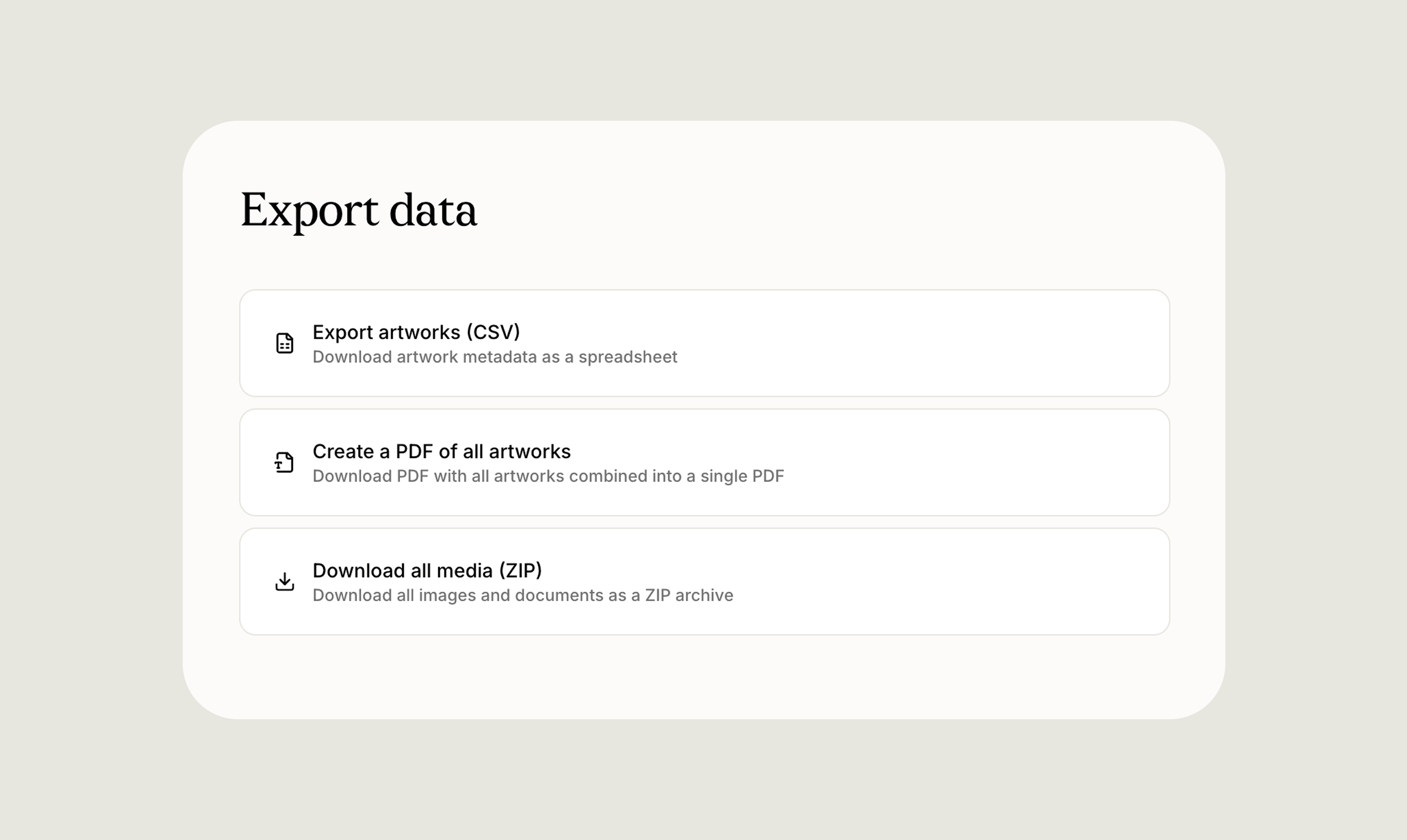
app.art-opia.com/export. Exports always apply to your currently selected collection.
Export artworks (CSV)
Download a spreadsheet of every artwork in your active collection. The file opens in Excel, Google Sheets, Numbers, or any other spreadsheet application. The CSV includes the core artwork record fields such as artist, title, year, medium, dimensions, and value information, alongside the full contents of the More section, description, condition report, and provenance entries. Acquisition data is also included: Acquisition Source, Acquired From, Purchase Price, Currency, and Date. Purchase dates export as a four-digit year. Use it to:- Create a backup of your metadata
- Import into another tool
- Share a simple inventory list
- Run your own analysis
PDF catalogue of all artworks
The Export page has a Create a PDF of all artworks option that produces one combined document covering your entire collection in a single step, useful for a full catalogue, an insurance schedule, or a portable archive of the collection. It uses the same presets, field toggles, and branded header as any other PDF in Artopia. If you only need a PDF for one artwork or a subset, do it from the artwork detail page or the list view instead. See Creating PDFs for the presets, available fields, and how to set up your header.Download all media (ZIP)
Download every image and document attached to your artworks as a ZIP archive. Choose how files are organised:- By artwork & artist, files are placed in folders named
Artist - Artwork Title. Files not linked to an artwork go into anUnlinkedfolder. - Original filenames, files keep their original names with no extra folder structure.
How exports run
1
Select the right collection
Switch to the collection you want to export. Exports always use your currently selected collection.
2
Open the Export data page
From the profile menu, choose Export data, or go to
app.art-opia.com/export.3
Choose an export type
Pick CSV, PDF catalogue, or ZIP.
4
Configure the output
For a PDF catalogue, follow the Creating PDFs options. For ZIP, choose how files are organised.
5
Download
The file is generated in your browser and saved to your device.
Exports are created locally in your browser (nothing is emailed or stored externally). Large collections may take a moment to prepare, especially the ZIP archive.