
Making a collection public
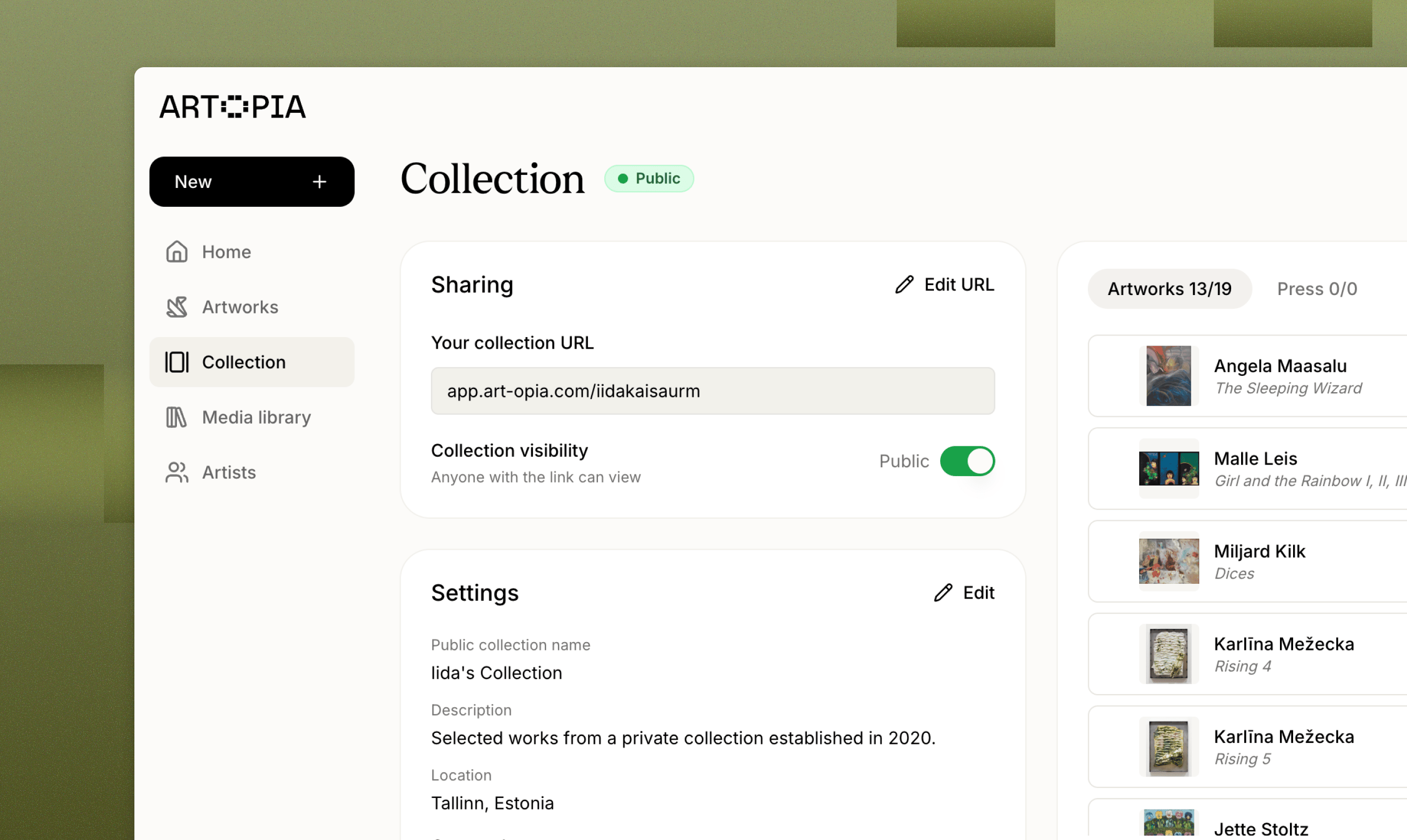
Before you can publish, set your collection URL. Use Edit URL on the Collection page to choose it. This is the address your collection lives at, and you cannot go public without one. It can only contain lowercase letters, numbers and hyphens. Two separate toggles then control what visitors can do:- Collection visibility, next to your URL, controls whether the page can be reached at all. Anyone with the link can view it once public.
- Contact button, under Settings, controls whether the Get in touch button appears on your public page.
Setting up your collection page
From the Collection page you can edit the name, description, tagline and location that appear on your public URL. These give visitors context: who you are, where you are based and what the collection represents.Choosing artworks
Not every work in your collection has to be visible publicly. Use Select artworks to choose which pieces appear. You can search your full collection, select several at once and drag to reorder them. Only the works you select are shown. Everything else stays private, whatever your collection’s visibility setting.Press
Your public collection includes a Press tab for coverage, reviews and articles. Add an entry from the Collection page with Add link, and give it:- The article URL
- A title, usually the headline
- The publication date
- A preview image, if you want one on the card
Previewing your page
You can visit your own public URL even while the collection is private. A preview bar sits at the top of the page showing whether you are currently public or private, a desktop and mobile toggle so you can check both layouts, and a link back to your collection.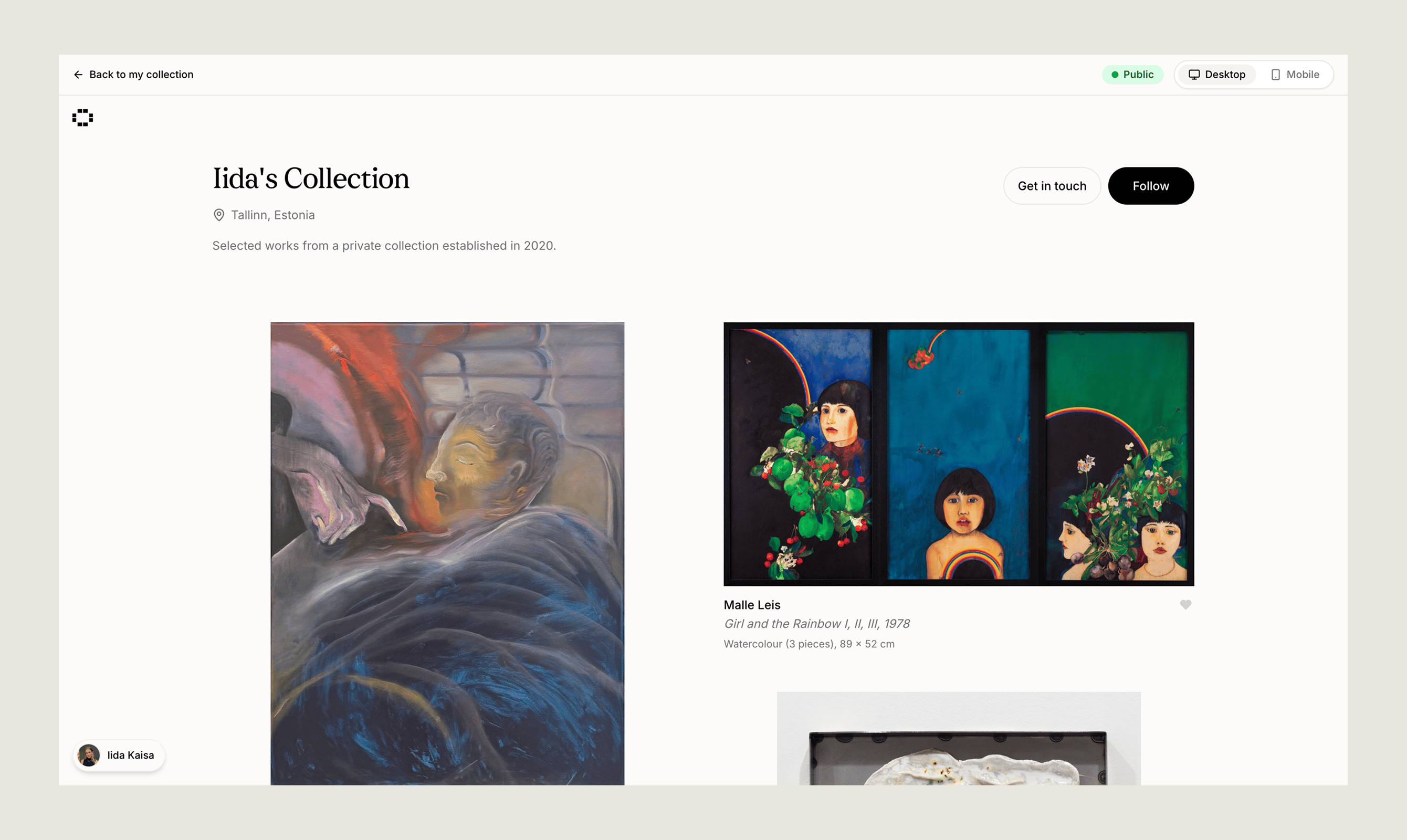
What visitors see
The header shows your collection name, location, and tagline, with two buttons: Follow and Get in touch. Both ask visitors to sign in first. Below that, your selected artworks appear in a grid. Clicking one opens its own page, with a zoomable image and the full details for that work. Signed-in visitors can like individual artworks.Enquiries
With Get in touch enabled, visitors can message you directly from your public page. They are asked to sign in first, then fill in a contact email and a message. Their email is prefilled from their account and they can change it.Your own email address is never shown to visitors.